

The following article details the process of moving a domain name registered at GoDaddy.com to a different registrar of your choice.
Requirements
Like most registrars, GoDaddy enforces a domain transfer lock for newly purchased domains and other events. Before you start, you should make sure of the following:
- You have a domain name registered at GoDaddy.
- You have been the registrant of the domain for at least 60 days. If your domain was purchased or transferred to GoDaddy within this timeframe it will be locked and cannot be moved to another registrar.
- You have not changed the contact information (registrant name, organization name, or email address) in the last 60 days, or you opted not to lock your domain when making the contact information update.
- If you registered the domain as part of a GoDaddy bundle purchase, 120 days must have passed before the domain is eligible to be transferred away.
Unlock the Domain
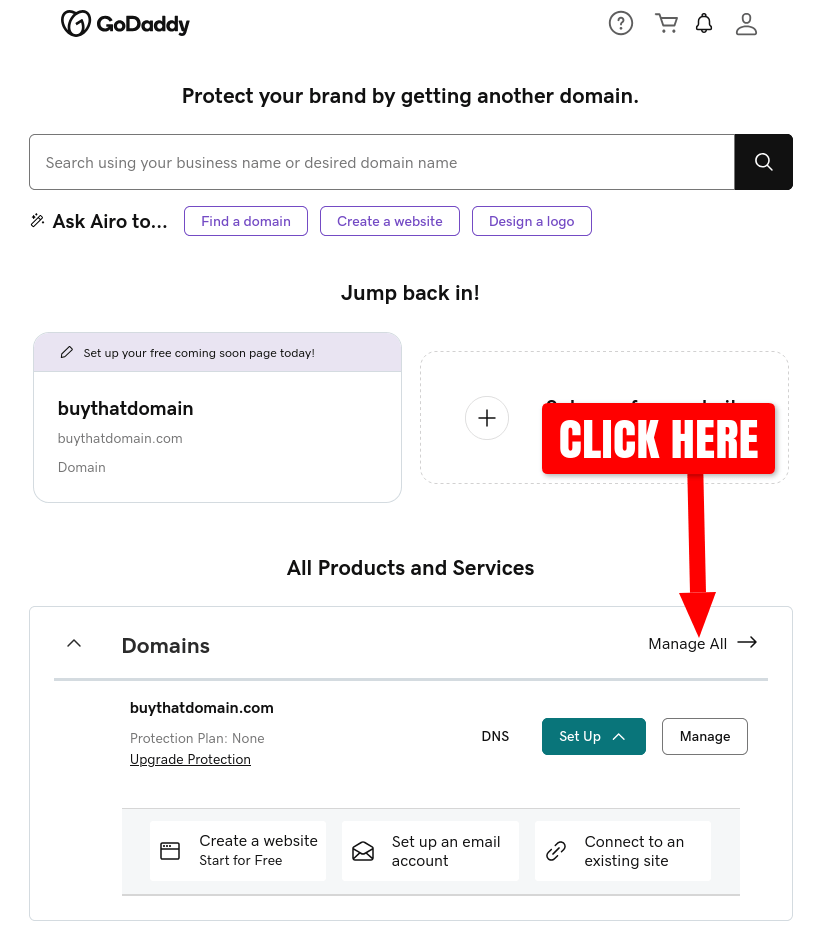
Log in to your GoDaddy account and navigate to the Domain Portfolio page. You can get to this page by clicking the Manage All link shown on the initial Products page after logging in:
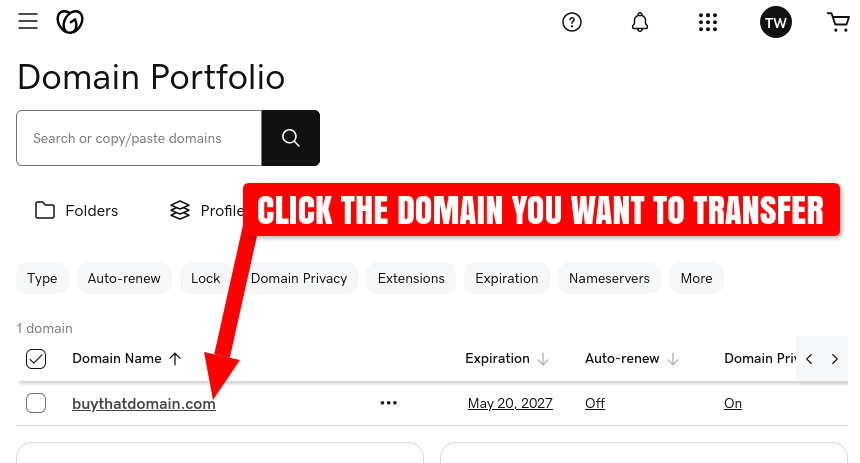
Next, click the domain name you want to move away from GoDaddy. In this example, we'll be transferring the domain buythatdomain.com:
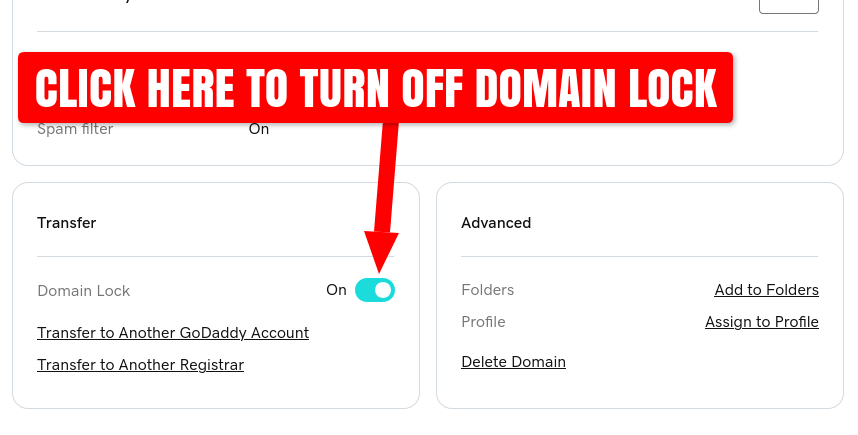
This will show your domain's Settings page. Scroll to the bottom of the page to the Transfer section and toggle the Domain Lock to Off:
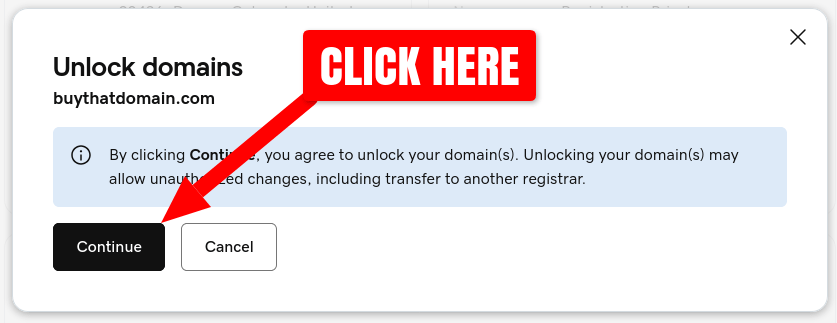
A pop-up dialog box will be displayed confirming that you want to unlock your domain. Click the Continue button:
Get the Authorization Code
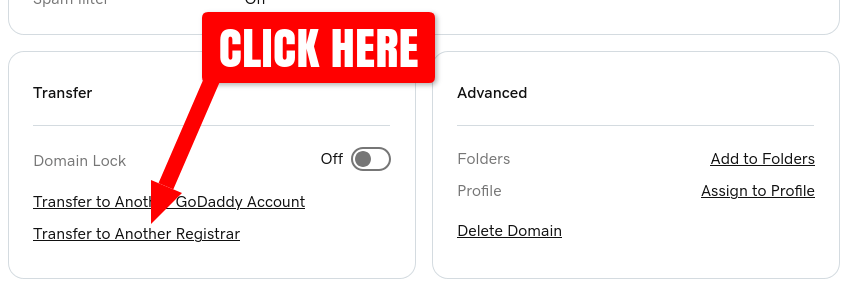
Now that your GoDaddy domain is unlocked, it's time to get the unique transfer authorization code (a.k.a AUTH key or EPP key) that will allow you to move it to another registrar. Click the Transfer to Another Registrar link:
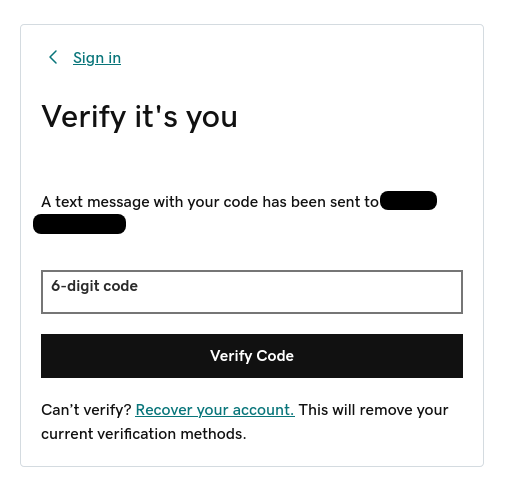
GoDaddy may now ask you to verify your identity by entering a 6-digit code sent via text message to the phone number associated with your GoDaddy account. Enter the code you receive and click the Verify Code button:
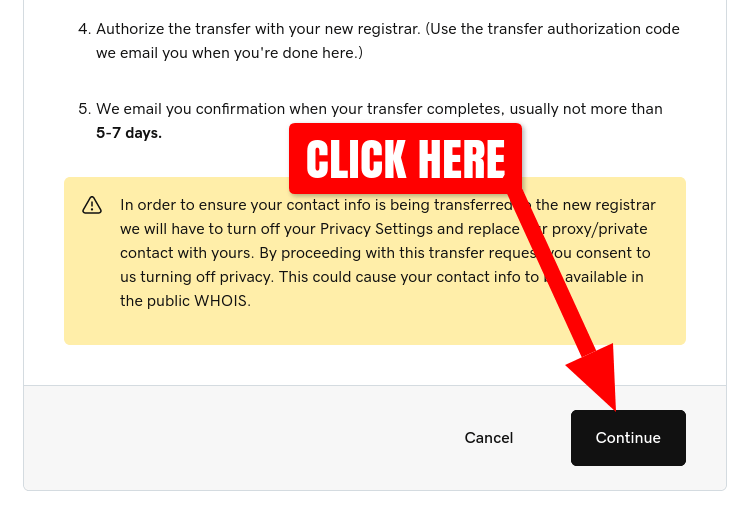
A transfer confirmation page will be displayed reviewing what's required for the transfer to complete.
Note that GoDaddy states they will remove any WHOIS privacy on your domain when you start the transfer request. However, I have not seen this actually occur. I monitored the WHOIS information for this domain throughout the transfer process. GoDaddy's WHOIS privacy contact information was not removed until the transfer was complete and the new registrar's WHOIS privacy contact information was assigned to the domain.
Click the Continue button to confirm:
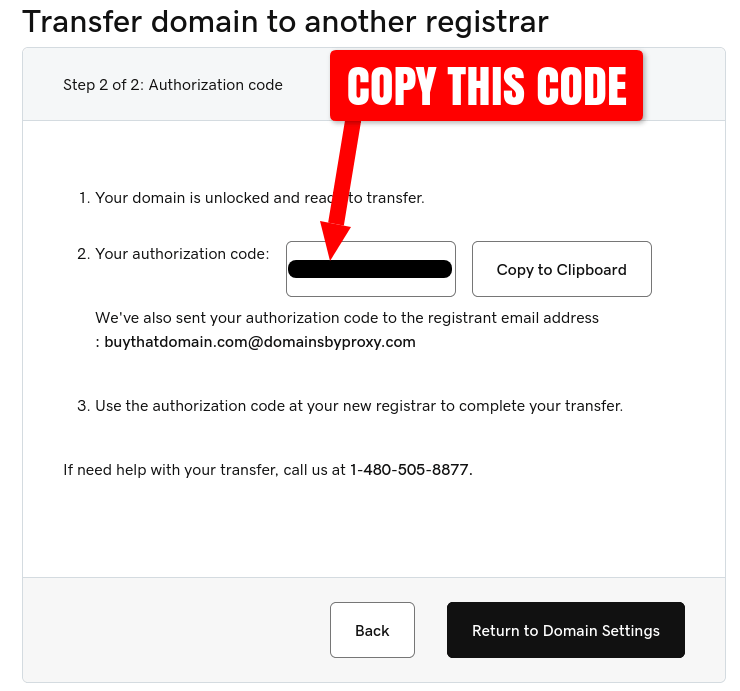
A second page will be shown containing the transfer authorization code. Click the box containing the text Click here to see Authorization Code to display the code, which will be a string of 16 random characters:
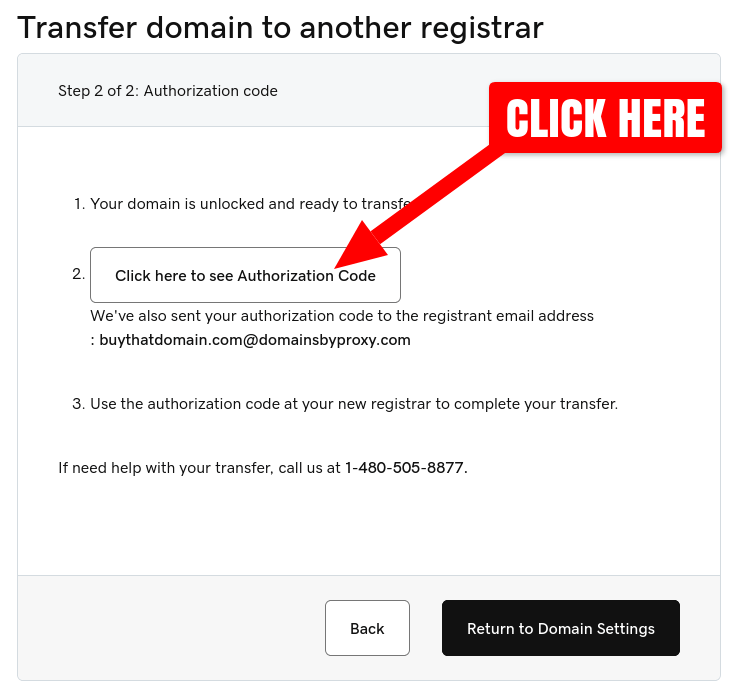
Copy this code to your clipboard or write it down in a secure location. GoDaddy will also send the code to the email address associated with your account. Do not share this code. Anyone with access to this code can use it to take ownership of your domain.
Transfer to a Different Registrar
Now that you've obtained the transfer authorization code for your domain, you can initiate the transfer process to a different domain registrar. Go to the new registrar's website, log in, and navigate to the Transfer Domain page. For this example, we will use Spaceship as the new registrar. Note that the transfer process may vary slightly for other registrars.
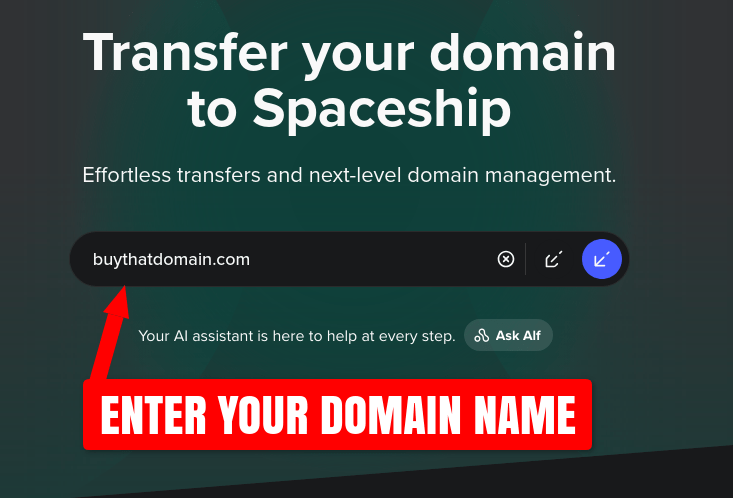
On the transfer domain page, enter your domain name that is currently registered at GoDaddy:
The registrar will ask you to enter the transfer authorization code. If you're using Spaceship as your registrar, they will immediately check the authorization code and only allow you to continue if it's valid and the domain is unlocked.
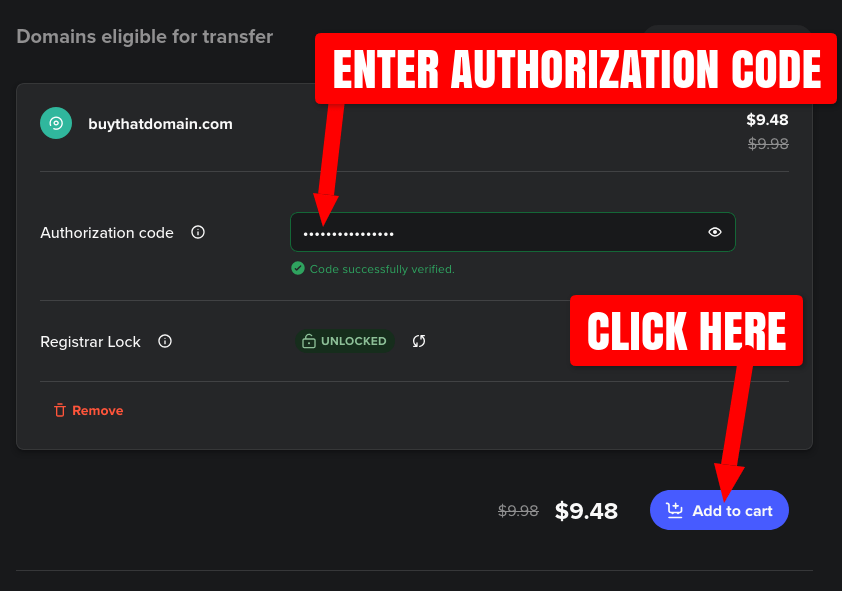
Next click Add to cart and continue to Checkout:
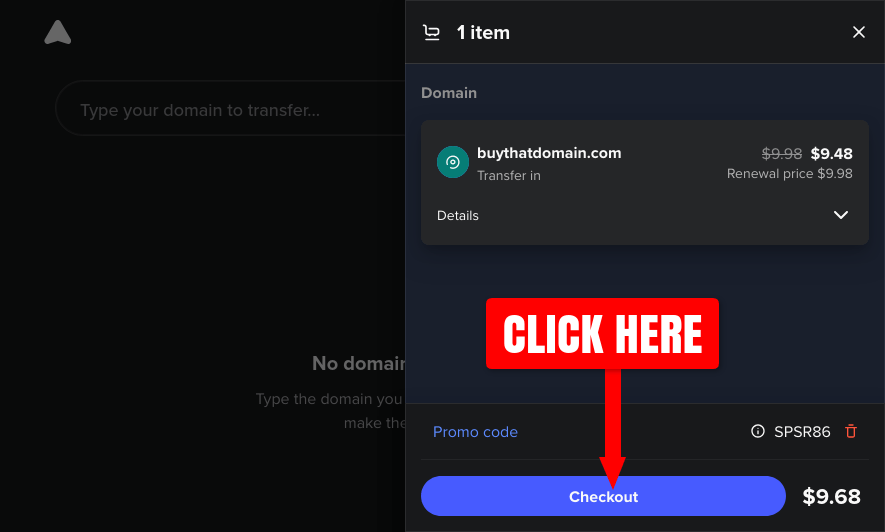
Finally, click the Pay now to complete the order and initiate the domain transfer process. By purchasing this domain transfer, another year of registration is automatically added to your domain.
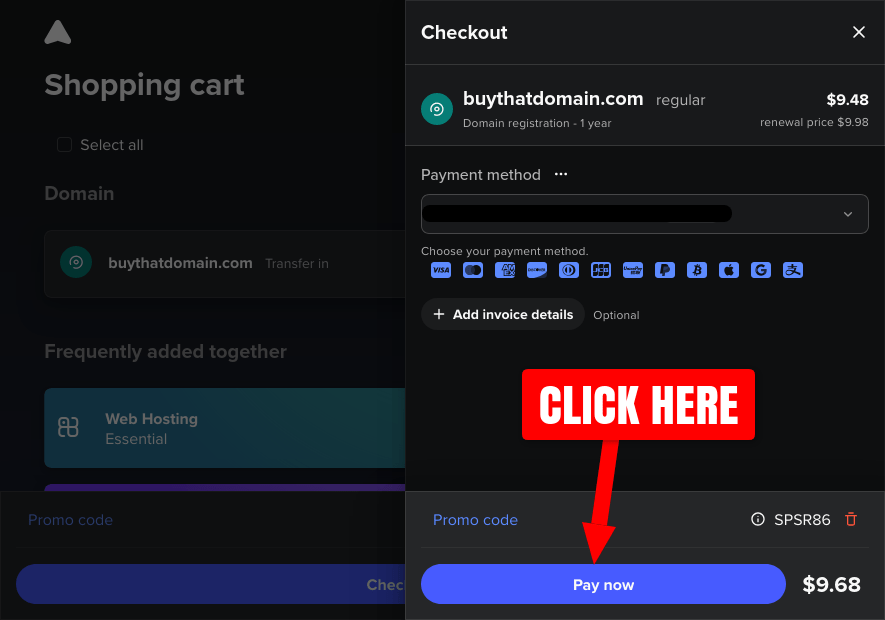
Once the transfer checkout is paid, your domain name will appear in your registrar's Transfer Manager page. Additionally, Spaceship will email you a receipt of your domain transfer purchase.
Navigate to the Spaceship Transfer Manager page to view the status of the transfer:
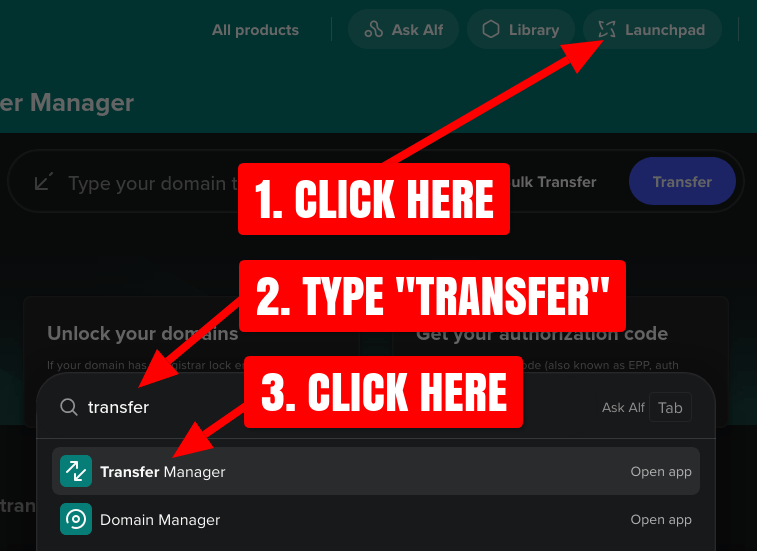
Here you can see the current status of your domain's transfer:
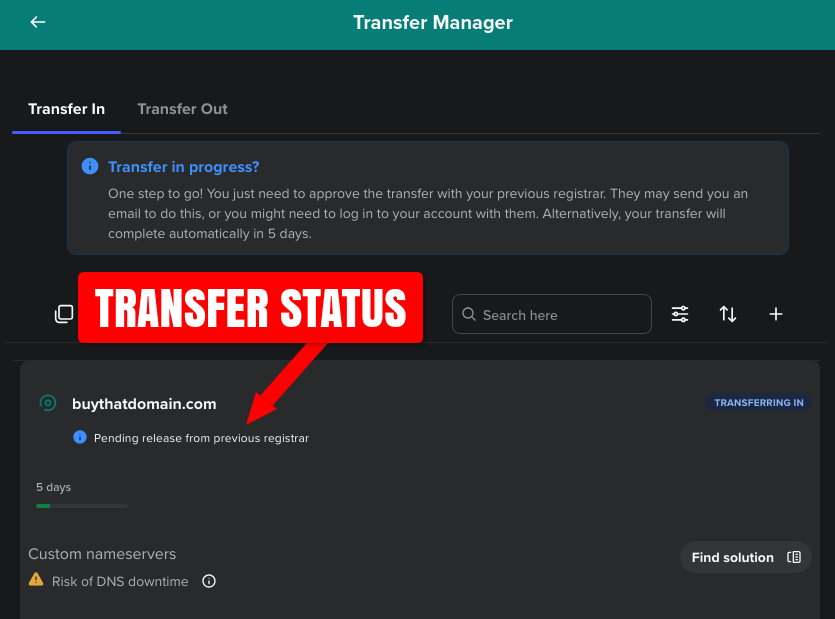
Your domain transfer is now underway and GoDaddy will complete the transfer automatically within 5 to 7 days.
Expedite the Transfer with GoDaddy
If you prefer to have the domain transfer completed immediately, you can manually approve the transfer with GoDaddy to have it finalized in about 30 to 60 minutes.
Log in to your GoDadddy account and navigate to the Domain Transfers page, and click on the Transfers Out tab:
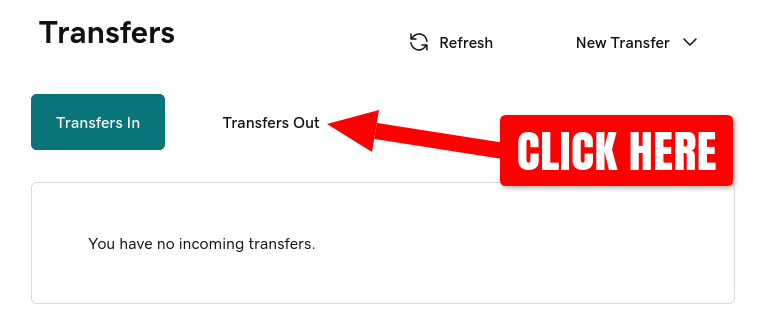
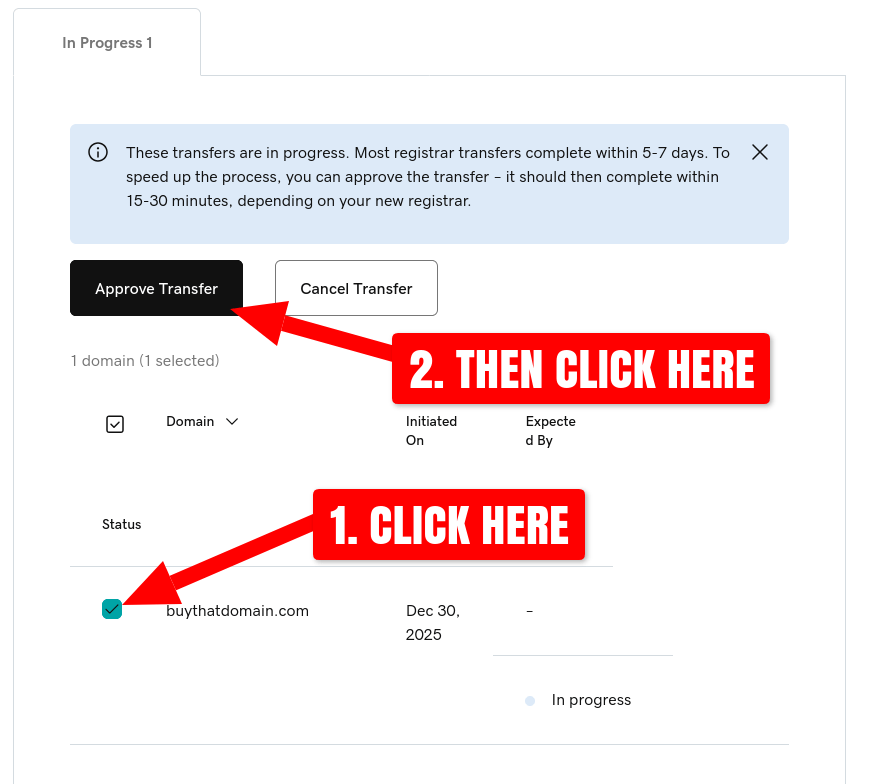
Click the checkbox next to your domain name and then click the Approve Transfer button:
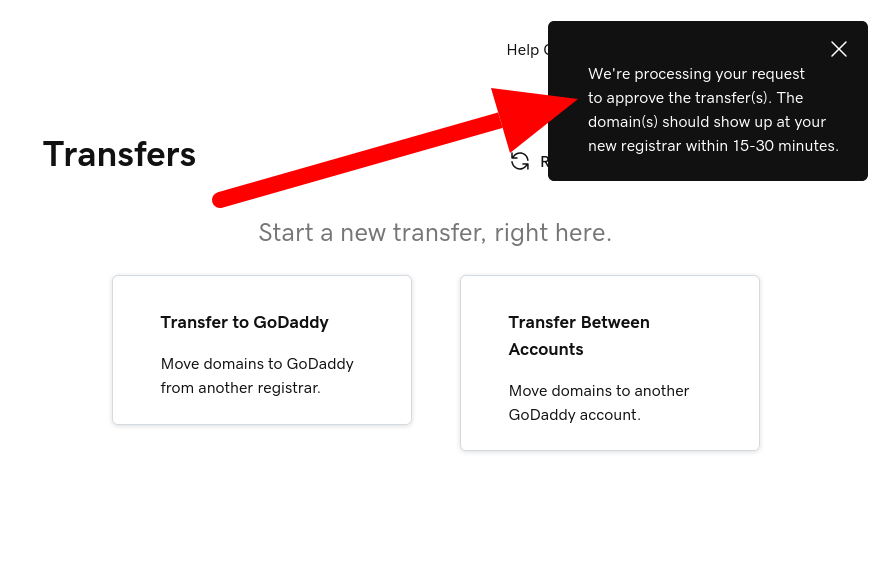
GoDaddy should then show a confirmation message that the transfer approval request is being processed:
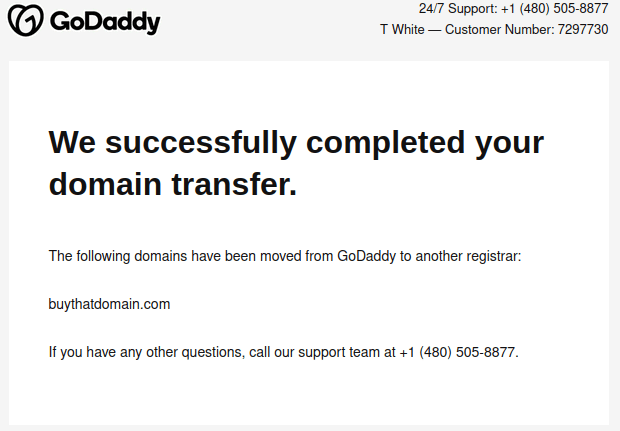
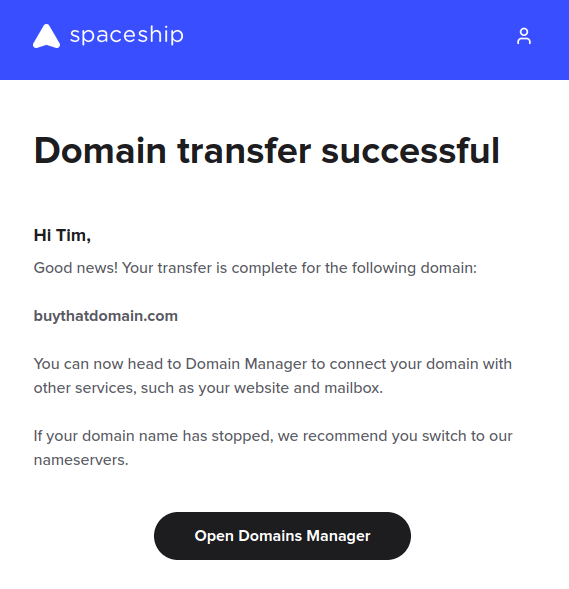
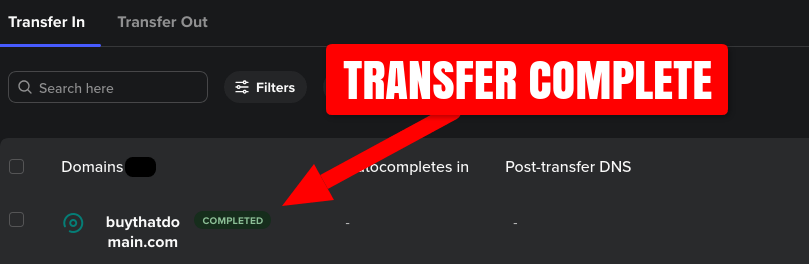
Within 1 hour, you should receive confirmation emails from both GoDaddy and Spaceship that the domain transfer was successful:
The transfer status can be further confirmed by logging into your Spaceship account and navigating to the Transfer Manager page:
You now have successfully transferred ownership of your domain to a new registrar. You can manage DNS settings, renewals, and registrar-level security through your new registrar going forward.