

This guide details the process for purchasing a "Buy It Now" (BIN) aftermarket domain name on Sedo and transferring ownership to your own registrar. In this scenario, Sedo is not the actual seller of the domain, but acts a 3rd party marketplace, payment processor, and escrow intermediary between you and the domain seller who has listed the domain on Sedo's marketplace.
The steps below assume you know that the domain name you want is for sale on Sedo, you're comfortable with the price, and you are ready to make the purchase.
Before You Start: Check If the Domain is Cheaper Somewhere Else
The domain name you want may be for sale at a lower price on another aftermarket platform. Domain sellers often list their domains on as many aftermarkets as possible, and sometimes a domain can be listed cheaper elsewhere. This usually happens when the seller drops the price on one aftermarket and forgets to update the price on other aftermarkets.
To view all of the prices of an aftermarket domain, visit the URL below (make sure to replace mydomain.com with the domain name you want):
https://domdb.com/mydomain.comOr simply search for your domain on DomDB's search page.
Here's an example of an aftermarket domain, tinz.com, that is priced much lower on Sedo:
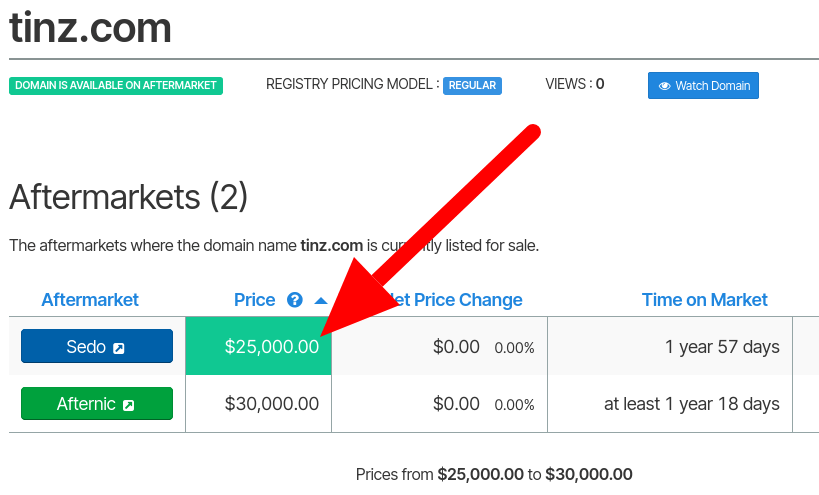
By checking DomDB first, we've confirmed that the price on Sedo for tinz.com is the cheapest price available, with a savings of $5,000 USD versus the listed price on Afternic.
Make the Purchase on Sedo
Let's suppose you want to purchase the domain mathgeek.ai. When you visit the domain in your browser, a Sedo lander page is shown, with the domain priced at $2,250:
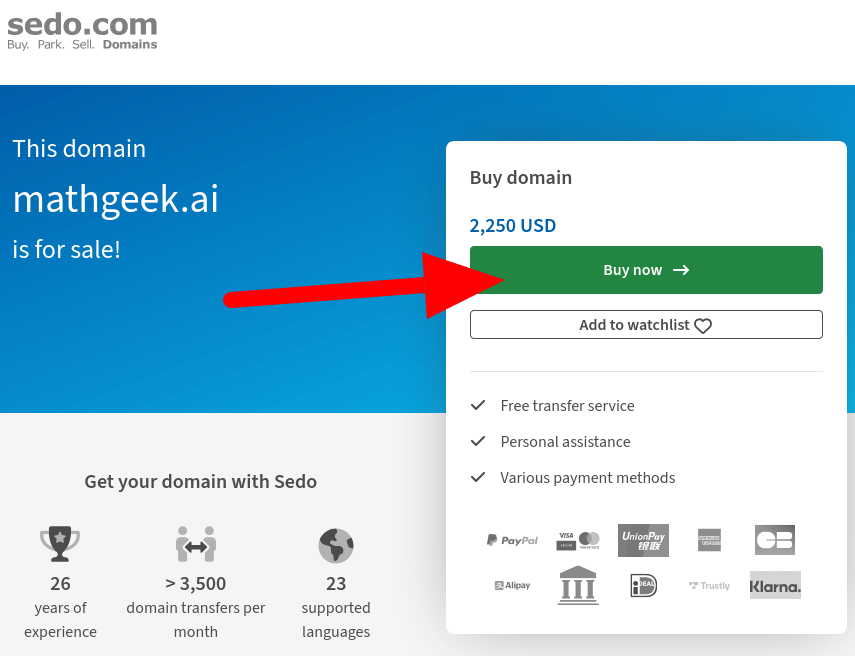
You can start the purchase process by clicking the green "Buy now" button.
Alternatively, if your domain does not load a Sedo lander page when you enter it into a browser, you can visit Sedo's page for a specific domain (make sure to replace mathgeek.ai with your domain name):
https://sedo.com/search/details/?language=us&domain=mathgeek.aiOr simply search for your domain on Sedo's search page:
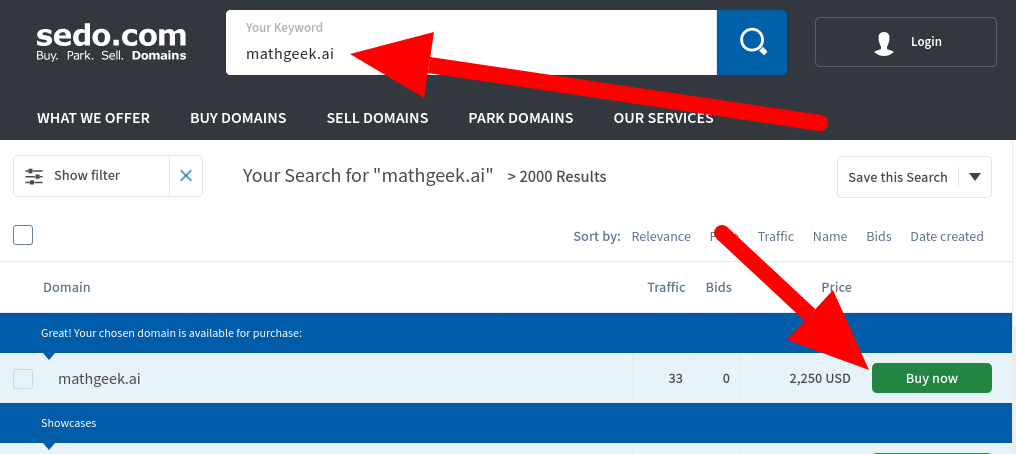
In this case, click the green "Buy now" button to begin the purchase process. If you are not currently logged into Sedo, you will be prompted to log in to your account.
If you do not yet have an account, you can create one for free.
Sedo will automatically redirect to the checkout page, where you'll enter your payment information. You'll also need to agree to the "Terms and Conditions" before finalizing the payment. Please note that your domain purchase may be subject to additional fees and/or taxes:
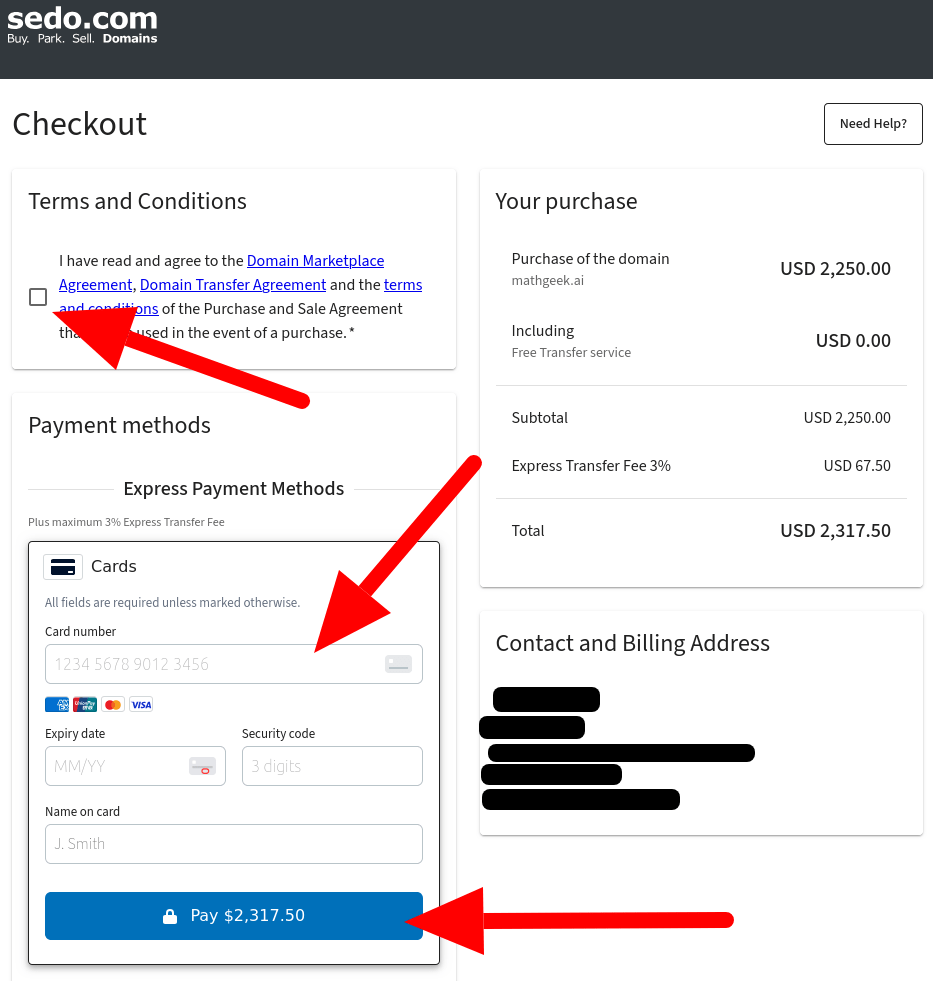
After completing the purchase, you'll be shown a confirmation page and emailed a purchase confirmation:
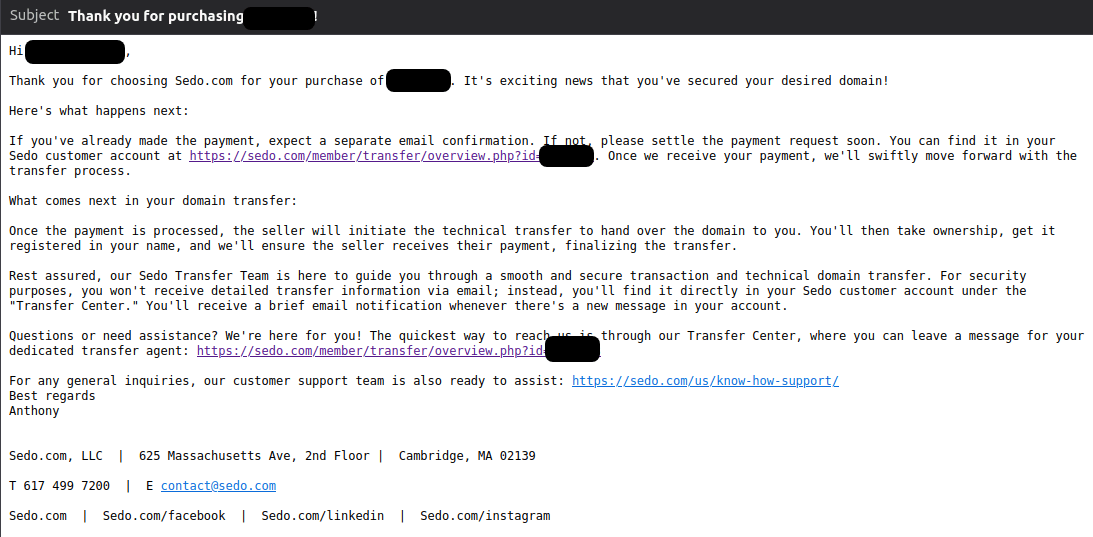
Keep in mind that Sedo does not immediately process purchases on weekends and holidays. So if you made the purchase on a Sunday or Christmas, you'll need to wait for the next business day for your order to be considered "Paid". During this time, Sedo's website may still show an "Awaiting Payment" status for your order, even though you've already paid.
Once Sedo has processed your payment, they will send you another confirmation email:
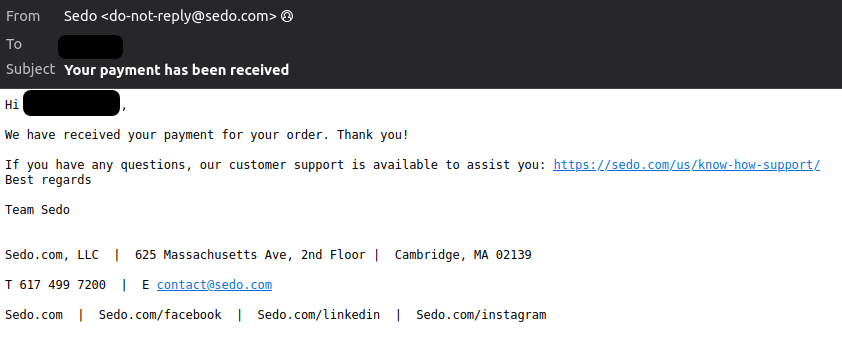
At this point, Sedo will hold your payment funds in escrow, and will request the domain seller to push the domain to Sedo's intermediary account at the domain's current registrar. Sedo has accounts with all major registrars. When the domain seller "pushes" the domain to Sedo's account with the registrar, instead of transferring it to a different registrar, ICANN's transfer lock is avoided. A transfer lock would have prevented the domain from being transferred to your registrar for another 60 days.
Transfer the Domain to Your Registrar
Once the domain name is in Sedo's possession, they will send you an email requesting that you start the transfer process with your registrar of choice:
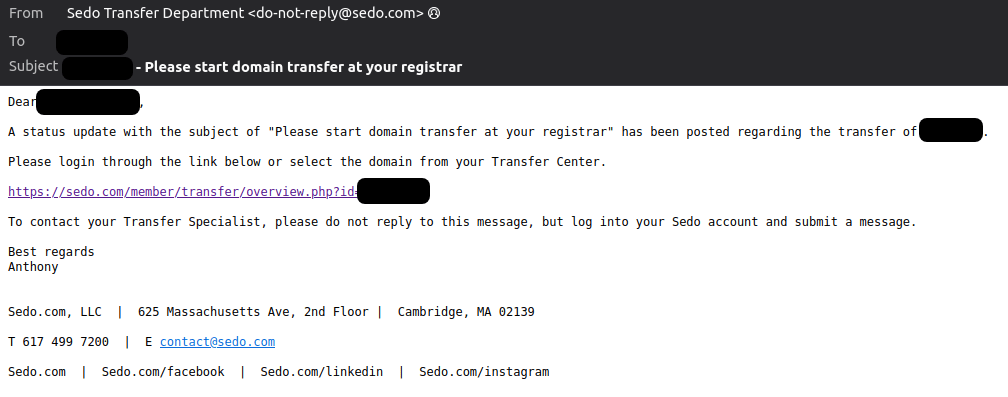
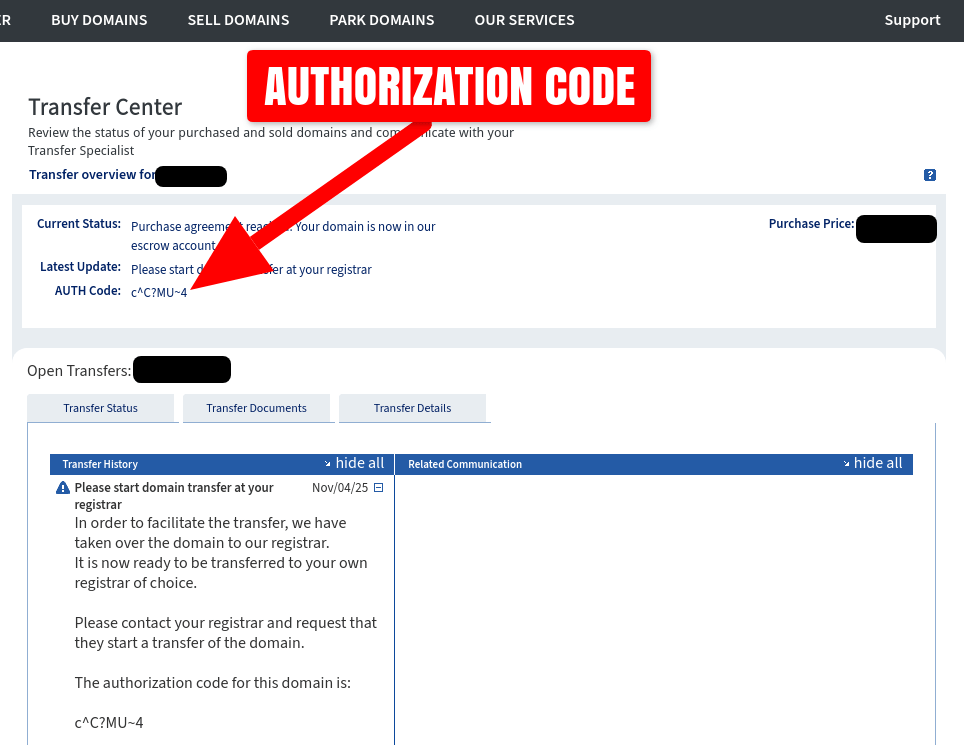
Before you can do this, you must obtain the authorization code from Sedo (also known as AUTH code or EPP code). This code is what allows you to transfer and take control of the domain name at your registrar of choosing. Any person with this code can take ownership of the domain, so keep it secret and do not share it with anyone, except your own registrar during the transfer process.
Follow the link in the email to log in to your Sedo account, which should take you directly to the domain's Transfer Center page. The authorization code will be shown at the top of the page as a string of numbers, letters, and symbols. This code is unique to your domain name and its current registrar:
Open a new browser window or tab, and navigate to your own domain registrar's website. Log in and go to the "Transfer Domain" page. For this example, we will use the registrar Spaceship.
On the transfer domain page, enter the domain name you purchased on Sedo:
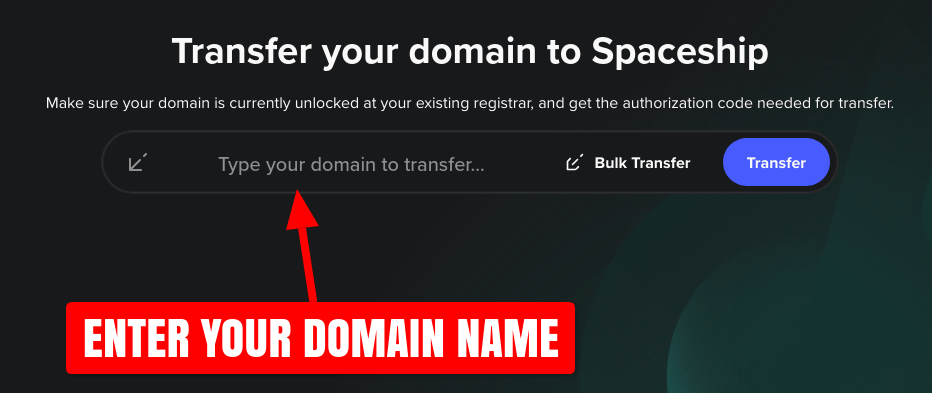
Your registrar may ask you to enter the authorization code in the next step. If you're using Spaceship as your registrar, they will immediately check the authorization code and only allow you to continue if it's valid.
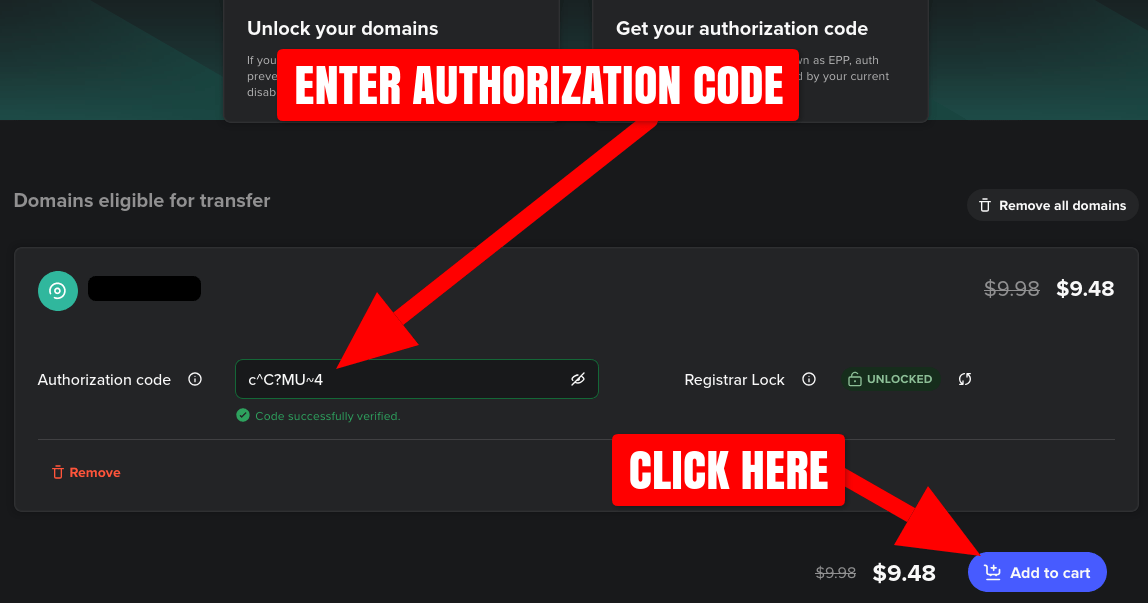
If your registrar shows that the authorization code is valid, you're ready to checkout and execute the domain transfer.
However, if your registrar states the authorization code is invalid, then Sedo has probably provided you the wrong code (this actually happened to me recently). In this case, you'll have to request Sedo to provide the correct authorization code. Go back to Sedo's Transfer Center for your domain and send a message requesting a new code:
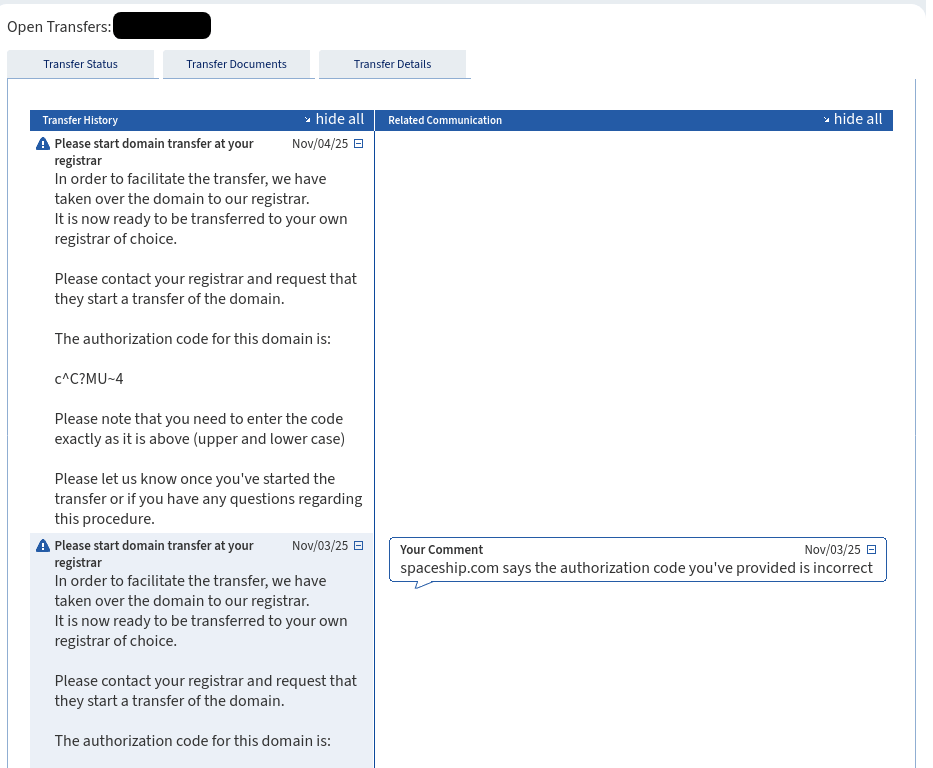
Within 24 hours, Sedo should respond with another "Please start your domain transfer" email. Log in to Sedo again, and get the new authorization code from your domain's Transfer Center page, and resubmit the transfer with your registrar using the new code.
Once your registrar has validated the authorization code, you're ready to checkout. The transfer fee will vary depening on your domain's TLD and the registrar:
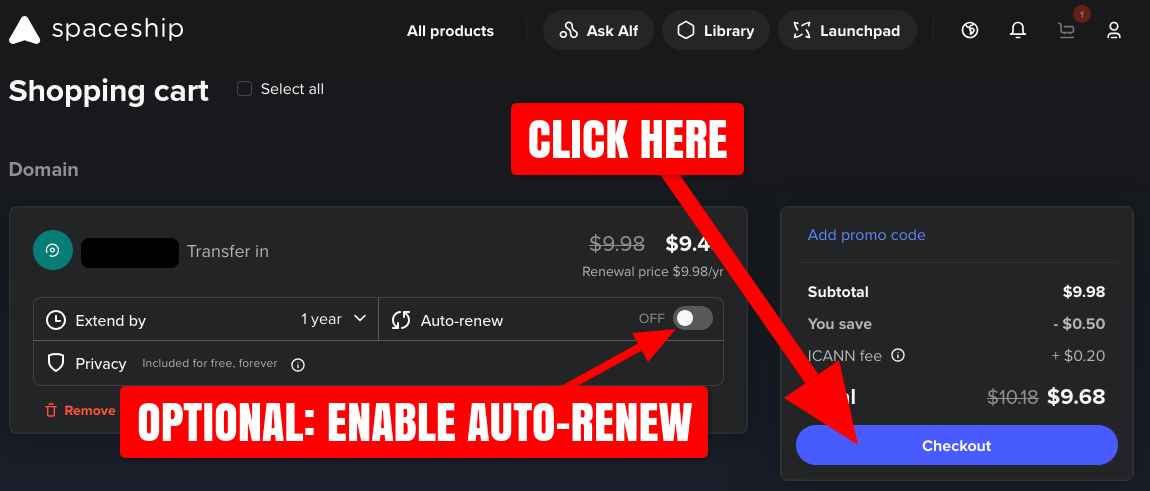
Your registrar may present you with the option to "Auto-renew" the domain. This simply means they will renew the domain before its expiration date, automatically extending your ownership of the domain. Enabling this setting is recommended if you plan on keeping your domain for more than 1 year or your domain is valuable.
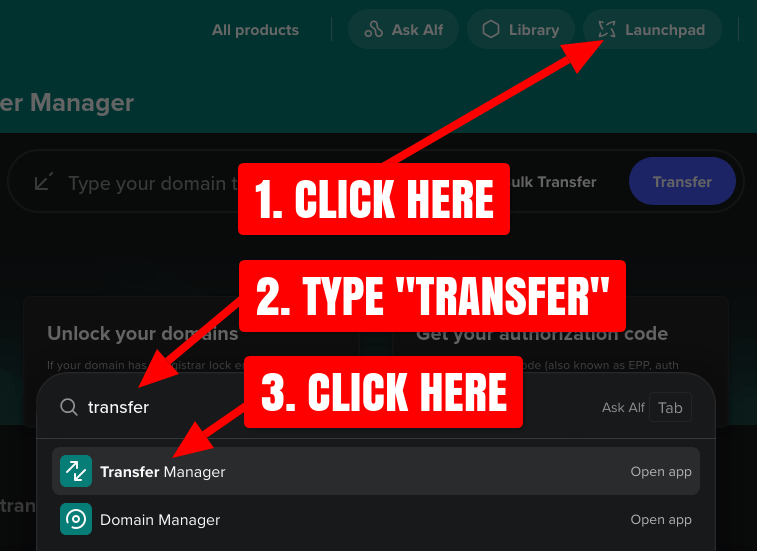
Once the transfer checkout is paid and complete, your domain name will appear in registrar's Transfer Manager page. Here's how to navigate to the Spaceship Transfer Manager page:
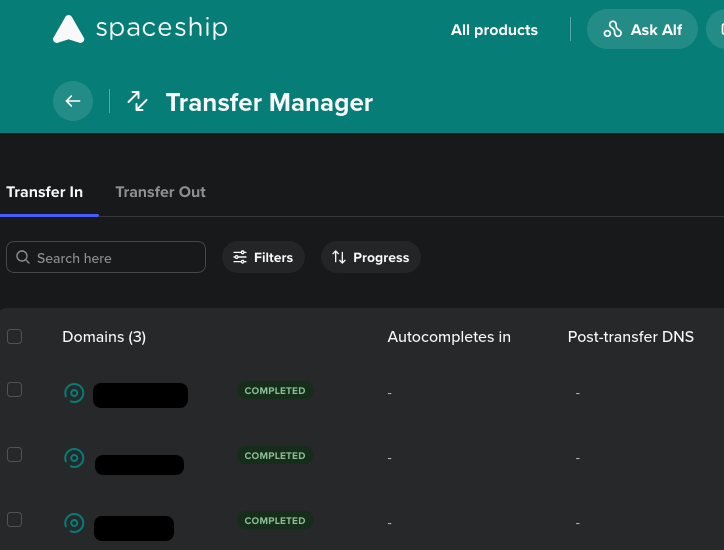
Spaceship's Transfer Manager page will show the status of your domain's transfer:
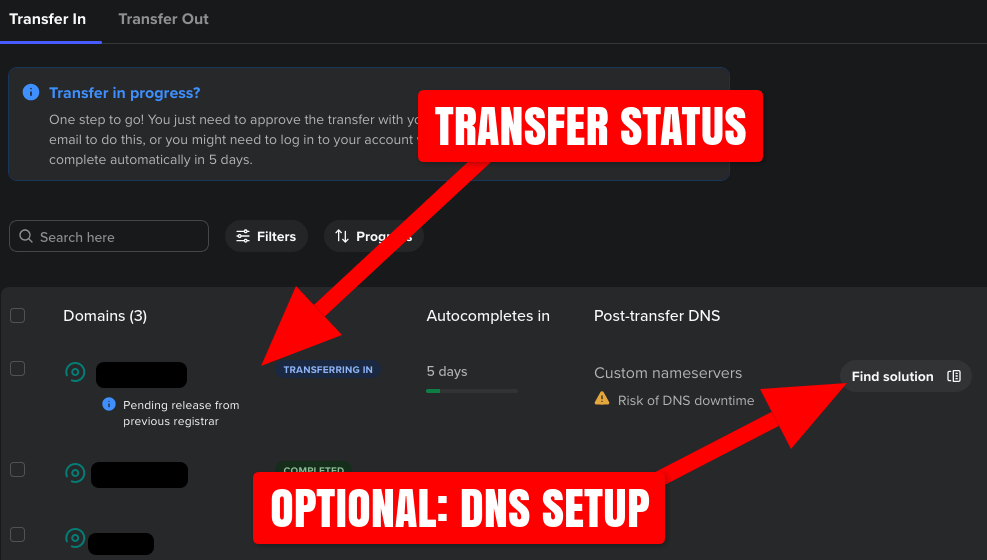
Unfortunately, there is no way to approve the transfer with Sedo yourself. Sedo will usually approve and release the transfer within 24 hours, but if not, the transfer will complete automatically after 5 days.
DNS Setup — Change Nameservers
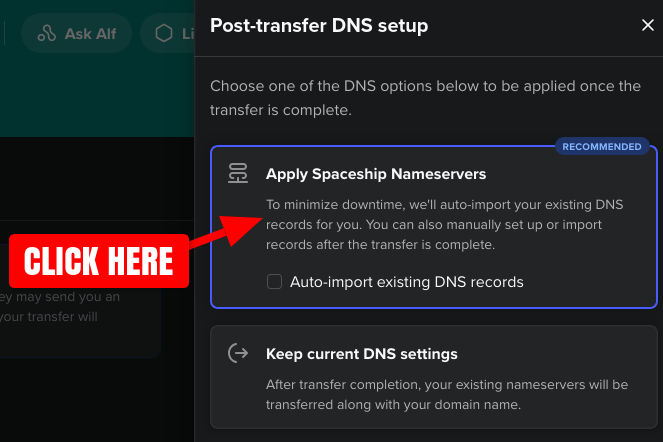
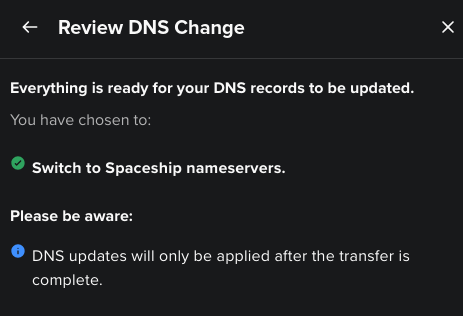
While you wait for the transfer to complete, it's recommended to setup an update to the nameservers of your new domain. When performed, your registrar will automatically setup your domain's DNS as soon as the transfer is completed. If this step is skipped, the domain's existing nameservers may continue to serve the domain's old DNS records even after the domain is transferred, which means whatever web page existed for the domain will still be displayed when it's visited.
On Spaceship, you can setup the nameservers change by clicking the "Find Solution" button and choosing the "Apply Spaceship Nameservers" option. In this case, it is recommended to leave the "Auto-import existing DNS records" unchecked:
Transfer Complete
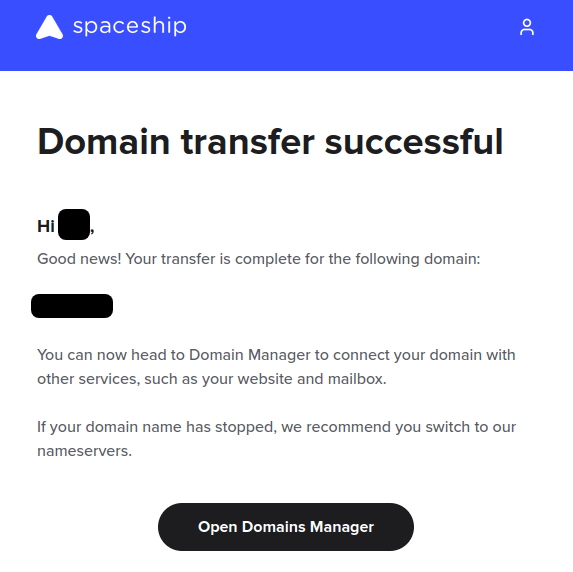
Once the domain transfer is finalized, your registrar should send you a confirmation email:
Congratulations! At this point, you now have complete ownership of the aftermarket domain name you've purchased.