
This guide covers the process of negotiating, purchasing, and transferring an aftermarket domain name from BuyDomains.com.
BuyDomains.com is a domain name portfolio containing millions of acquired domains. Like all domain portfolio services, its primary goal is to resell domain names for a profit. Its parent company, Newfold Digital, Inc., also owns and operates the registrar Network Solutions, which handles the fulfillment of purchases from BuyDomains.com.
TL;DR
- Domains can be negotiated and often purchased for far cheaper prices than BuyDomains.com's listed "Buy It Now" price.
- Purchased domains are locked for 60 days with the registrar Network Solutions and cannot be transferred during this time.
- Creating an account with Network Solutions to manage your newly purchased domain can be arduous.
Find Your Domain on BuyDomains.com Search
If you're here, you've probably typed the domain name you want into a browser and have been shown a BuyDomains.com lander page advertising the domain as being for sale. Here's an example lander page for the domain darknetworks.com:
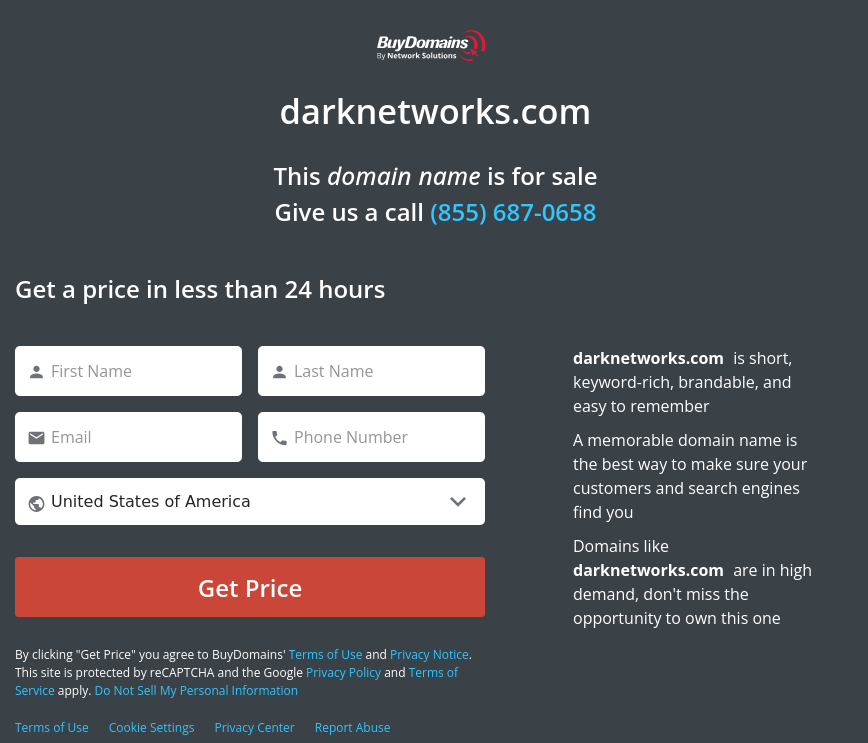
You may be tempted to fill out the form and click the "Get Price" button. Don't do it.
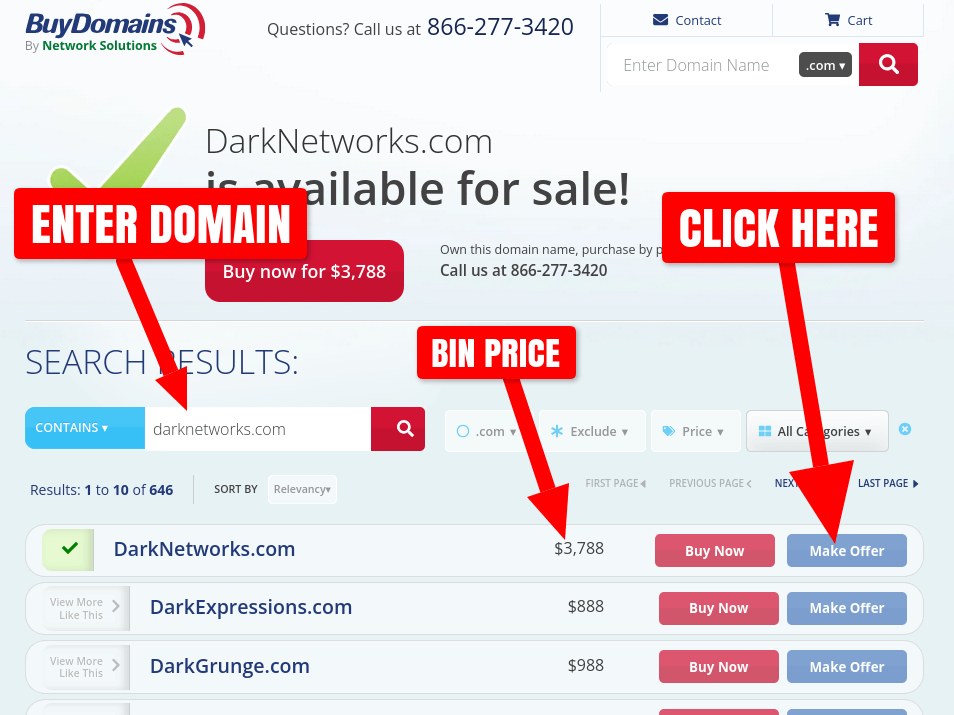
Instead, find the domain on the BuyDomains.com search interface so you can see what their current "Buy It Now" (BIN) price is and potentially negotiate it lower. For whatever reason, BuyDomains.com does not show the BIN price on their lander pages.
For our example domain darknetworks.com we can see their BIN price is $3,788 USD. Instead of clicking the "Buy Now" button, click "Make Offer" to begin a price negotiation by submitting an offer. There's a very good chance you can get BuyDomains.com to lower the price of the domain with just a few emails.
This brings up the BuyDomains.com Make Offer form. First, discover what their minimum offer amount is by typing "1" into the "Your Offer" input box and clicking the "Submit Offer" button. The form will show multiple errors outlined in red, as well as the minimum offer price under the "Your Offer" input box:
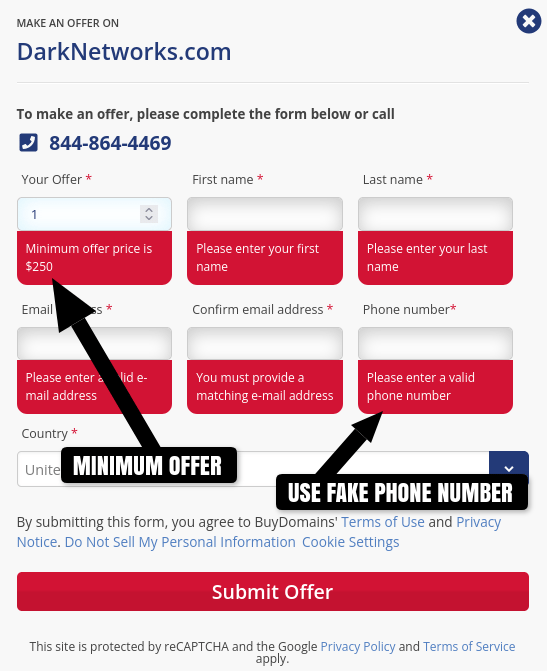
Next, fill out the form with the displayed minimum offer price ($250 in this case) and your contact information. It is recommended to use a fake phone number as it's not necessary for anything. If you enter your real phone number, it could be used to spam you, be sold to other advertisers, or be populated into the WHOIS data for the domain if you make the purchase. Click "Submit Offer" to finalize your offer.
Market Research
While you wait for BuyDomains.com to respond, you may want to check DomDB to see how long this domain has been listed for sale by BuyDomains.com, and if any price changes have been made. This can give you a good idea how motivated BuyDomains.com is to sell the domain: the longer the domain has been on the market, the more motivated they'll be to sell at a lower price.
Additionally, if the price has been lowered recently, or had multiple price cuts, that's even more evidence that they are flexible with the domain's price.
DomDB doesn't currently track BuyDomains.com inventory directly. However, BuyDomains.com also lists all of their domains on Afternic and Sedo, which DomDB does track. So for our example darknetworks.com domain, we can either search DomDB for the domain or visit the domain's detail page directly to get some intelligence data:
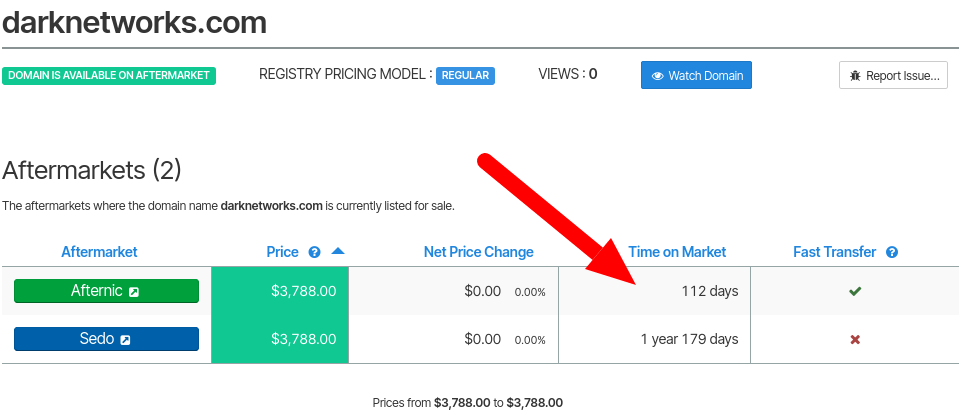
In this example, we can see that darknetworks.com has been listed on Sedo (and subsequently on BuyDomains.com) for over a year and half. This is a good indicator that BuyDomains.com will be willing to negotiate.
BuyDomains.com will also be much more open to negotiations when you buy from them directly. When they sell a domain via Afternic or Sedo, a large percentage of the purchase price is paid as a commission to the aftermarket platform. That fee does not exist for BuyDomains.com when you purchase a domain directly from them.
Negotiating a Price
After submitting your offer, BuyDomains.com will respond within 24-48 hours with an offer at the domain's original list price. The following screenshots are the email exchange for a domain I purchased from BuyDomains.com recently:
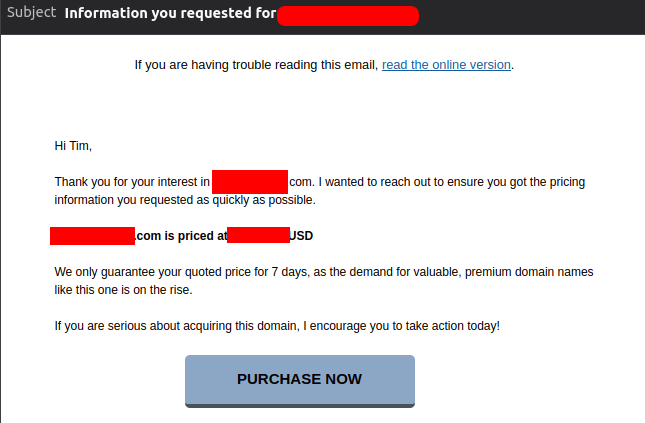
Do not respond to this email. An "account executive" will most likely reach out to you again in 2 days with a new counter-offer at 20% off the domain's original list price:
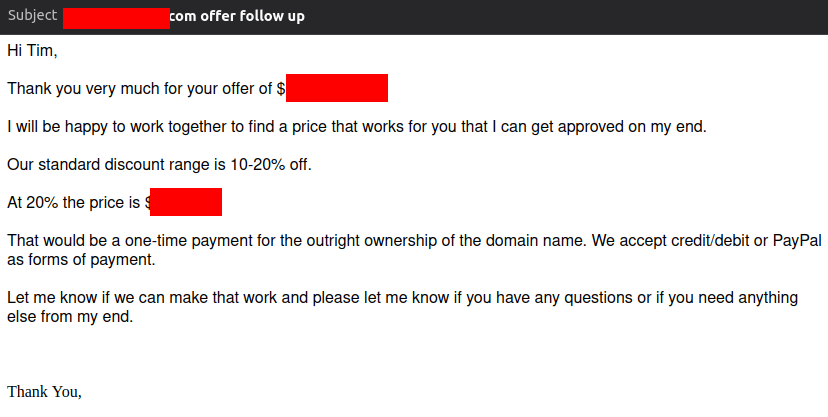
At this point you can begin negotiating a price. If you are willing to bring your original offer of $250 up a bit, a good place to start would be 15-20% of their original list price. I'd suggest responding with your counteroffer the same day, via a short and polite email:

BuyDomains.com should respond to your counteroffer within 24 hours. In my case, they seemed very motivated to sell and seemingly accepted my offer (but of course they'd have to "check with management" first 😂):

This will not always happen, and BuyDomains.com may respond with another counteroffer, or completely dismiss your counteroffer. My best advice would be to determine the maximum amount you're willing to pay for the domain, and submit slightly increasing counteroffers until you reach your maximum price, or BuyDomains.com accepts a counteroffer.
You might also completely ignore their counteroffer to feign disinterest, and BuyDomains.com will most likely respond with a new lower price within a few business days.
In my case, I considered the price fair and responded that I was ready to submit a payment:
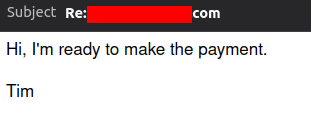
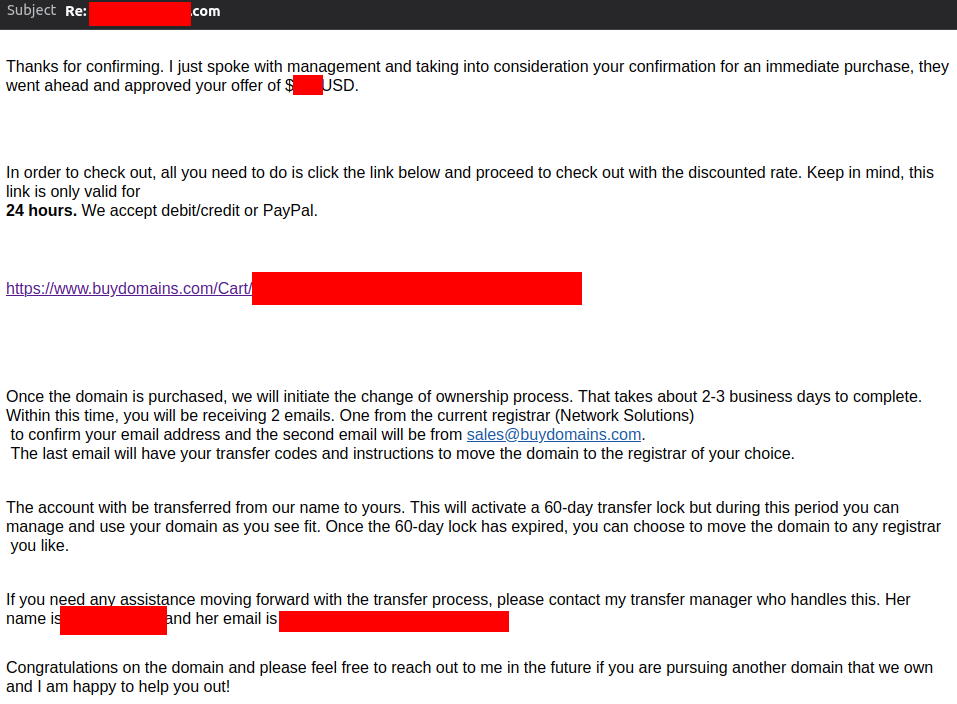
BuyDomains.com responded that management had approved the price and provided a checkout link:
Making the Purchase
BuyDomains.com checkout process is pretty standard and accepts credit/debit cards, Paypal, and wire transfers.
To make payment, click the checkout link in BuyDomains.com's offer acceptance email, which brings up their shopping cart page:
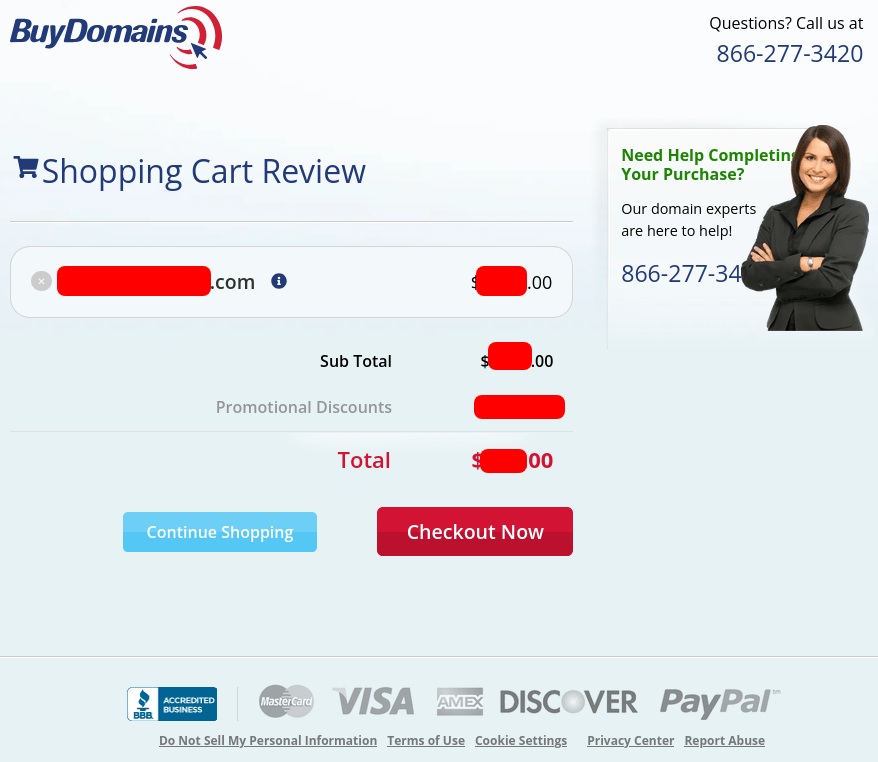
Before continuing, ensure the final price is the same price that was agreed upon. There should be a "Promotional Discounts" line item that deducts the difference of the original list price and the final negotiated price.
Click "Checkout Now" to continue to the checkout pages that will prompt you for your contact and payment info.
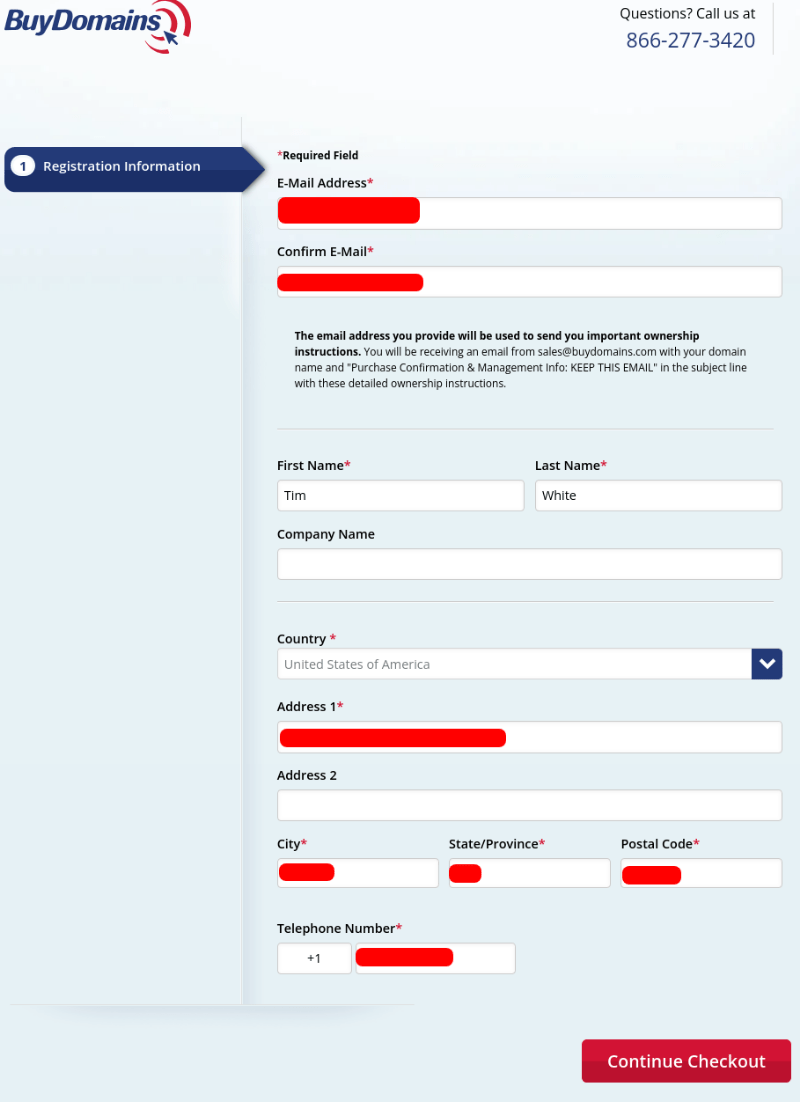
Ensure you can receive email at the email address you provide as they will send you important information for accessing your domain name after the purchase is complete. Additionally, I do not recommend providing your real phone number as it is unnecessary to make the purchase.
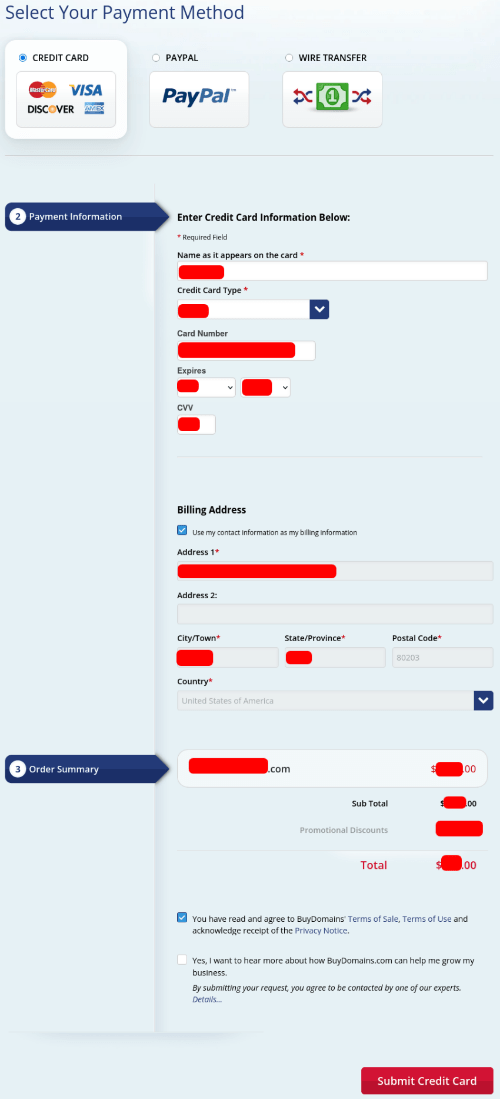
After submitting your payment information, you'll be shown shown a purchase confirmation page. I'd suggest clicking the "Print Receipt" button and saving the purhcase receipt for your own records:
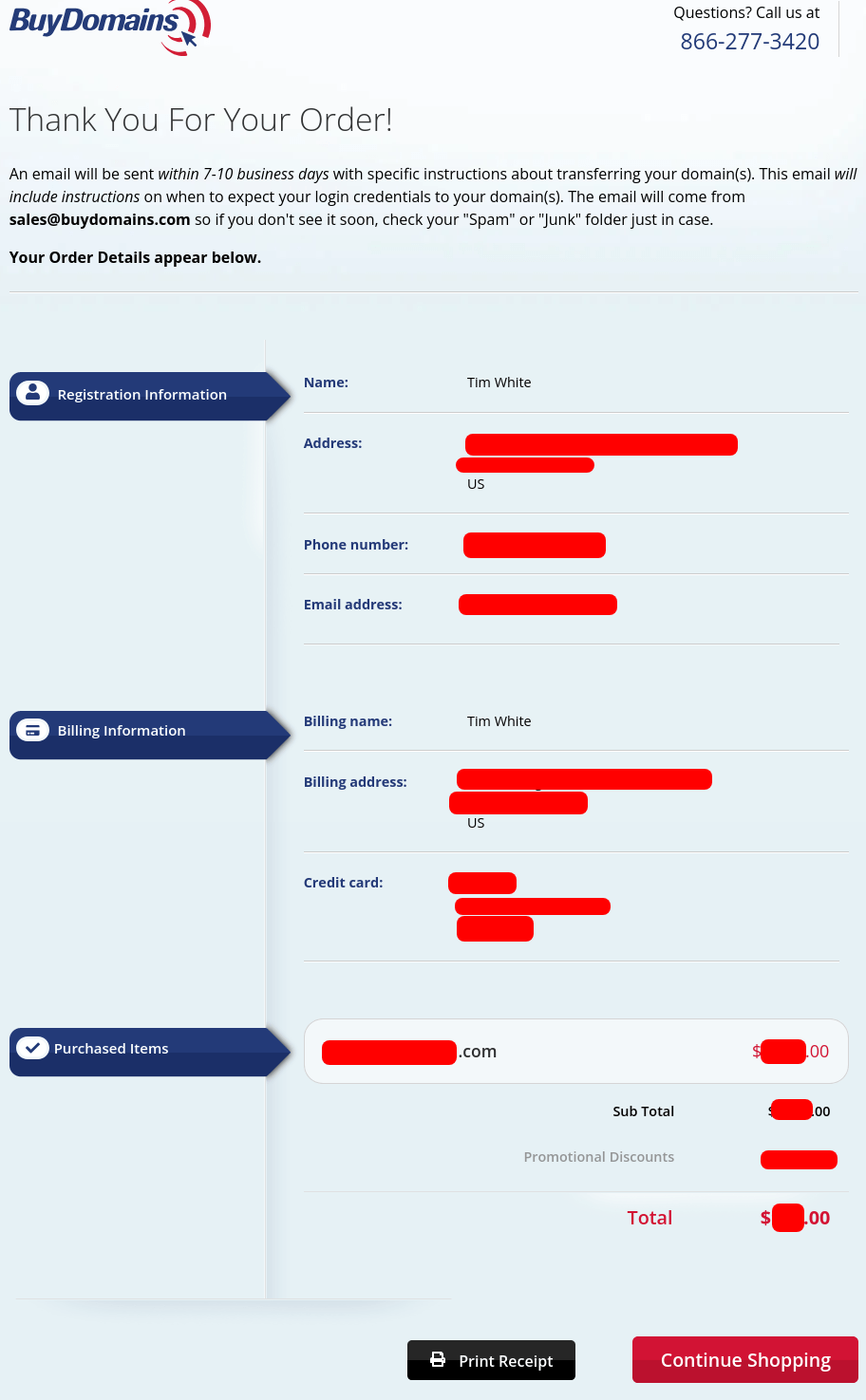
Your purchase from BuyDomains.com is now complete. The next step is to simply wait for them to email you the information needed to access your new domain name.
Accessing Your Domain
If you want to confirm the ownership of your domain, change its DNS settings, or eventually transfer it to a different registrar, you'll need to setup an account with Network Solutions, which will act as the custodian registrar of your new domain name for at least the next 60 days.
After 60 days has elapsed, you'll be able to transfer the domain to your registrar of choice.
Why Though?
ICANN rules state that a domain needs to be locked by its current registrar for 60 days (via a "Client Transfer Prohibited" status) whenever its owner contact information changes. However, the current owner of the domain can choose to opt out of this.
BuyDomains.com chooses not to opt out of this, probably for the following reasons:
- Fraud prevention: if a buyer issues a credit card chargeback for the domain's payment, BuyDomains.com still has control over the domain for 60 days as Network Solutions is part of their parent operating company. This prevents bad actors from keeping the domain by transferring it to another registrar and getting a refund for the purchase (many credit card companies simply side with the customer in a chargeback dispute).
- New customers: forcing you to create an account with Network Solutions might lead to new paying customers, renewals, and upsells.
Creating a Network Solutions Account
Once the payment for your new domain name is settled, BuyDomains.com will send you 2 additional emails containing information about your purchase:
- Confirmation of order # 123456789 for XXXXXXXXXXXX.com
- Receipt # 123456789 for purchase of XXXXXXXXXXXX.com
However, these are simply confirmations of the purchase and contain no information allowing you to access your domain name.
Within 24 hours, you should start receiving a number of emails from NetworkSolutions.com:
- Domain Transfer is Complete
- Your Backorder Request Was Successful
- Welcome to Network Solutions.com!
- You have a domain name, now what?
The only one you really need to care about is the Your Backorder Request Was Successful email as it contains your new Primary User ID (a 9-digit number that identifies you) and a link to create an account:
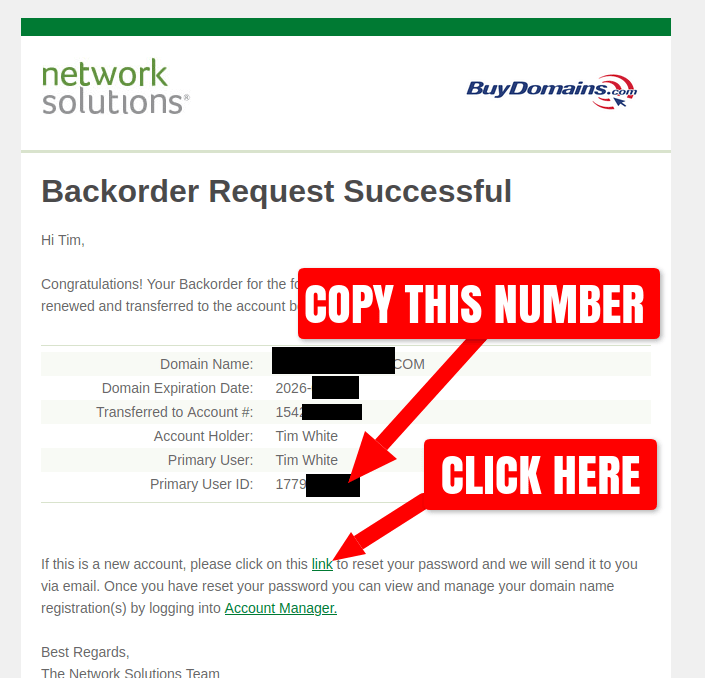
Copy the Primary User ID to your device's clipboard and click the link in the sentence "If this is a new account, please click on this link to reset your password…". This will send you to their account Log In page.
NOTE #1: I don't know why they title this email "Backorder Request Succesful" as this was not a backorder.
NOTE #2: Network Solutions will continue to spam you with promotional emails about twice a week, so you might want to click the "unsubscribe" link in any of the emails you received.
After clicking the link, your browser should show you Network Solutions' Log In page. Paste your Primary User ID (from the email they sent you) into the "Username or email address" input and click the "Next" button:
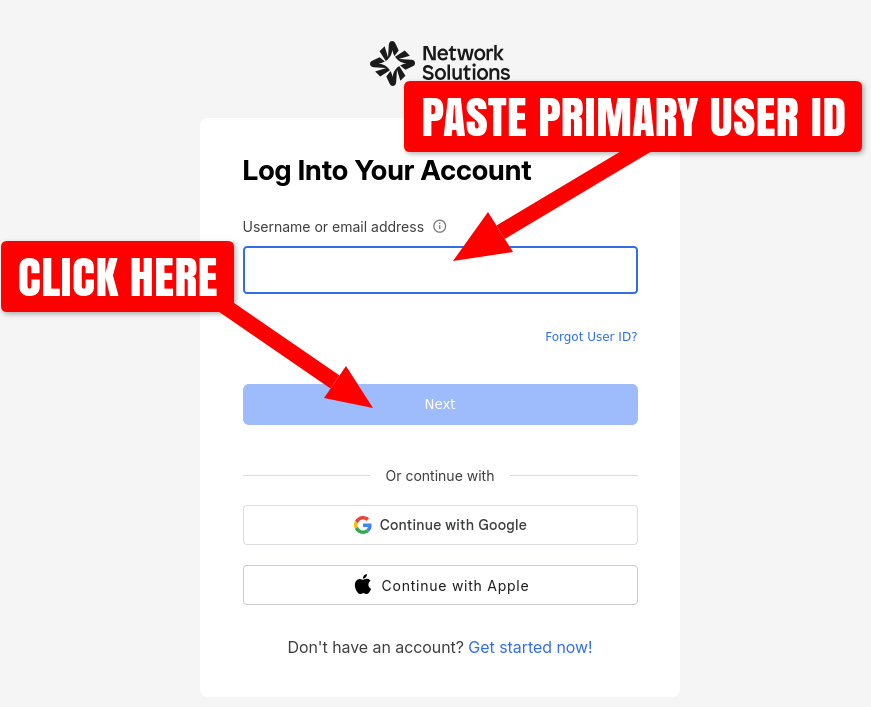
On the next page, you'll be directed to enter a password. You don't have a password yet, so click the "Forgot Password?" link:
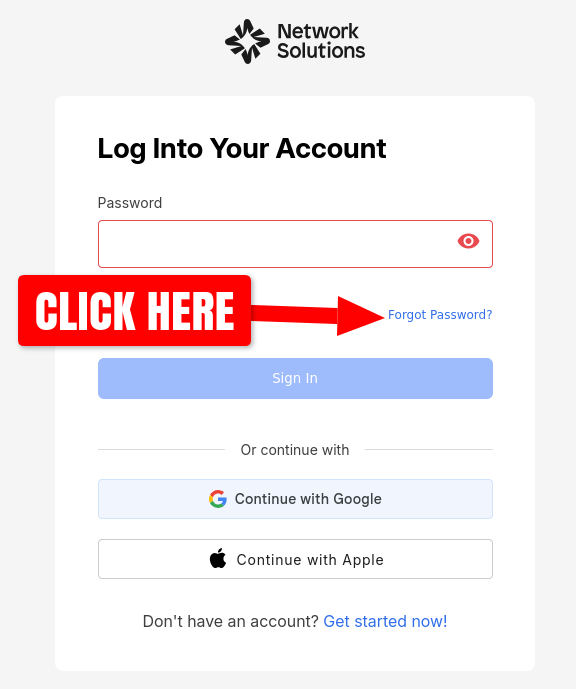
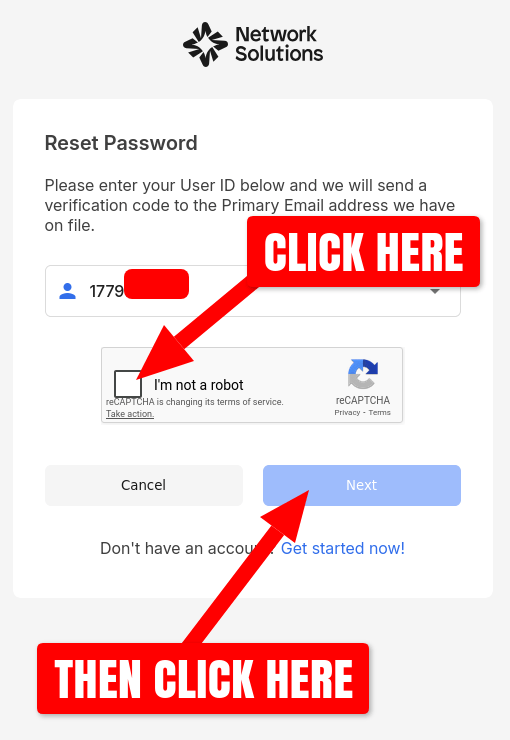
Next, you'll be shown a "Reset Password" page. Complete reCAPTCHA challenge and click the "Next" button:
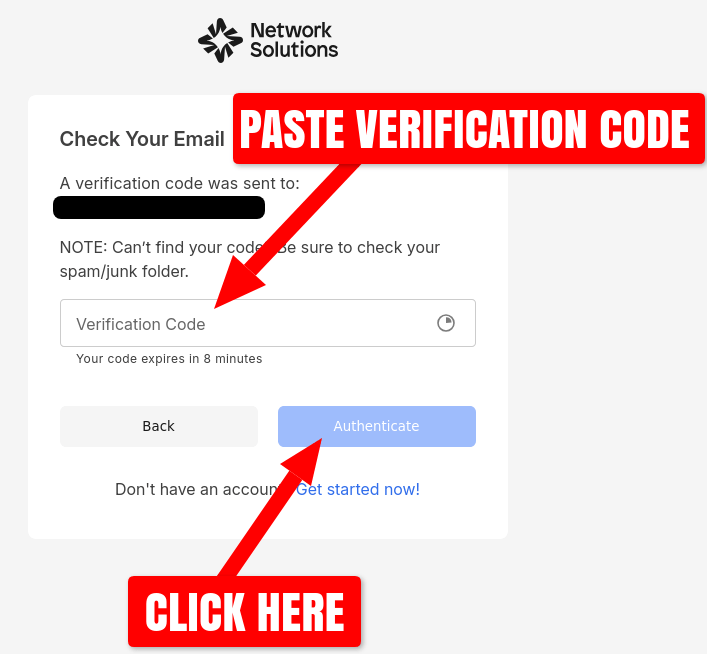
The resulting page will prompt you to "Check Your Email" for a verification code. Network Solutions has automatically sent you a Verify Your Account email containing a 6-digit code:
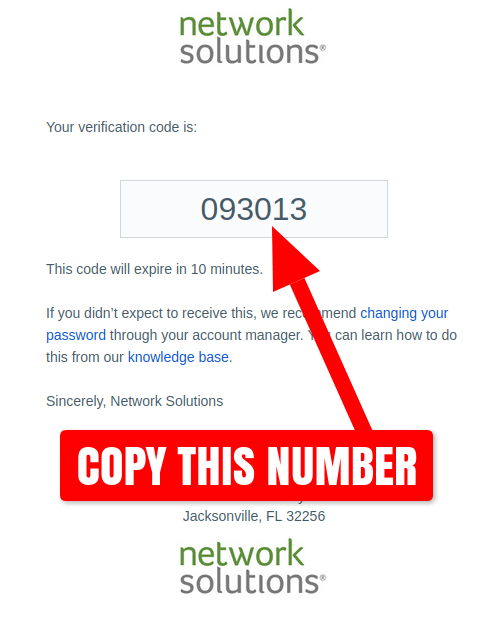
Copy that 6-digit code to your device's clipboard and paste it into the "Verification Code" input ithin 10 minutes:
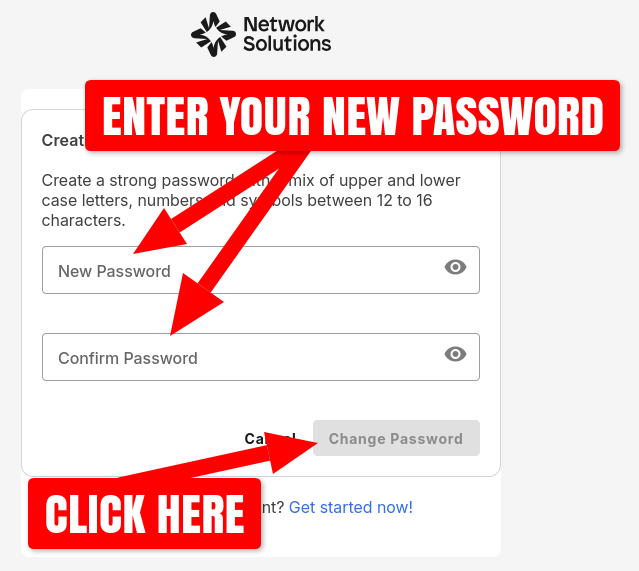
Now you'll be presented with the Create Password page. You'll need to enter a password between 12 and 16 characters long and then click "Change Password" button:
Finally, you'll be redirected back to the Network Solutions Log In page with no confirmation message about your new password or account setup. Enter your Primary User ID, click the "Next" button, enter your password, and click the "Sign In" button. Upon logging in, you'll be presented with a Secure Your Account page asking you to create a 6-digit PIN number. This step is optional, but recommended, as a PIN number is required when contacting Network Solutions customer support to further verify your access to the account.
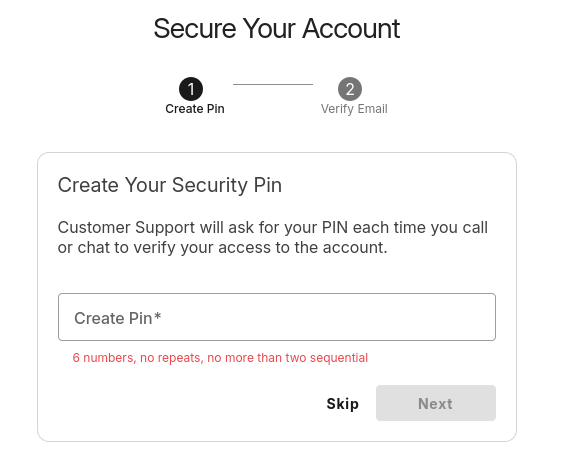
If you choose to create a PIN number, you'll be sent yet another Verify Your Account email containing a new 6-digit code that will need to be entered in the next Verify Email page. Afterwards, another Review Your Account Security page pops up that shows your PIN and email address:
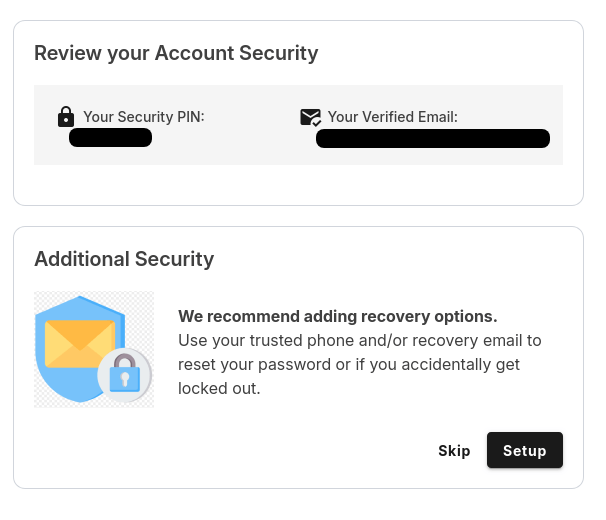
Network Solutions will then offer you additional prompts to increase your account's security, such as adding a recovery email address and 2-step verification. These are optional and will not be covered in this write-up.
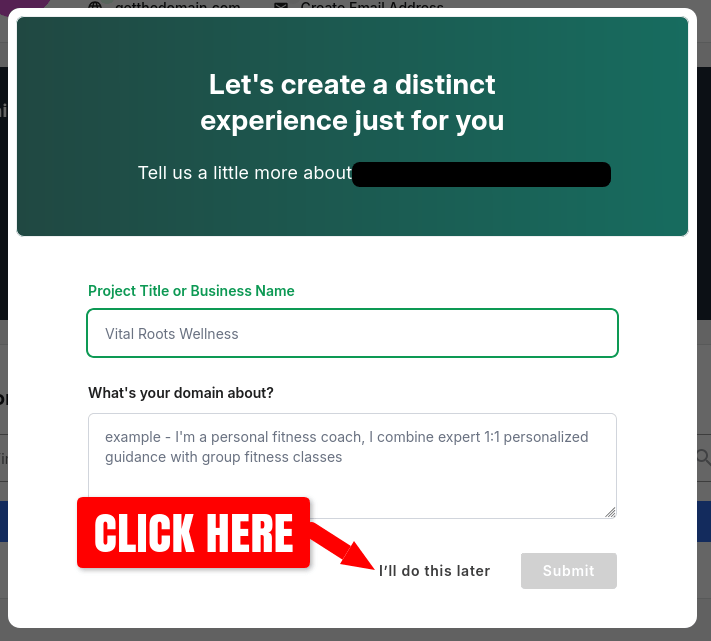
Now that your account setup is complete, you'll be shown the account home page, complete with a pop-up to have a "distinct experience created just for you". This is not recommended, click the "I'll do this later" button to close it:
To view your domain management page, click the "Domains" link in the left-hand account navigation menu:
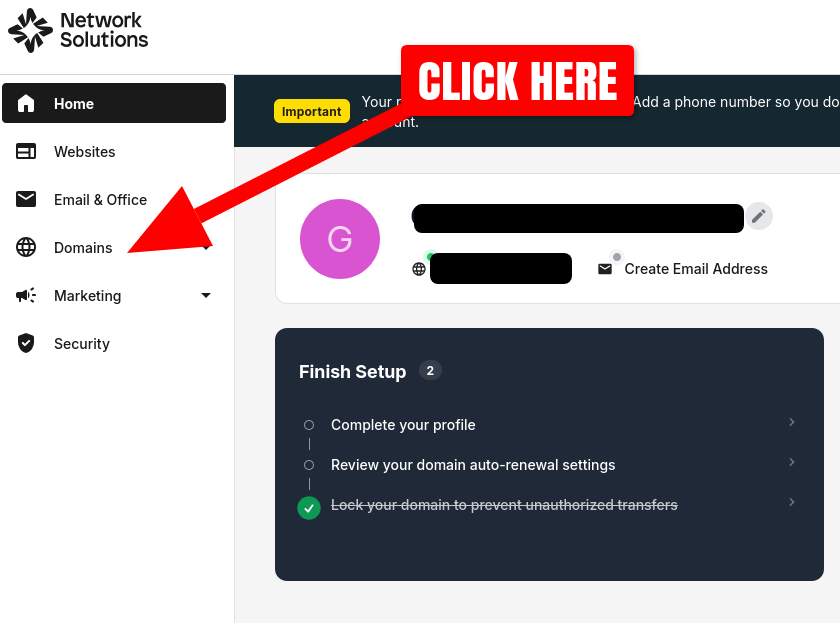
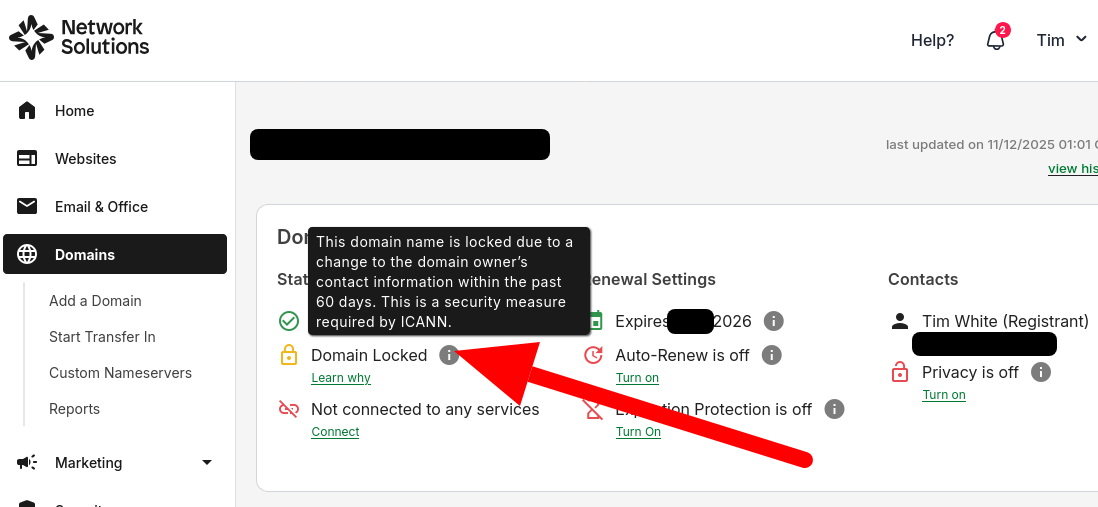
This should direct your browser to your domain's management page. Here you can view an overview of options for your domain, and confirm that it is locked at Network Solutions for a 60-day period:
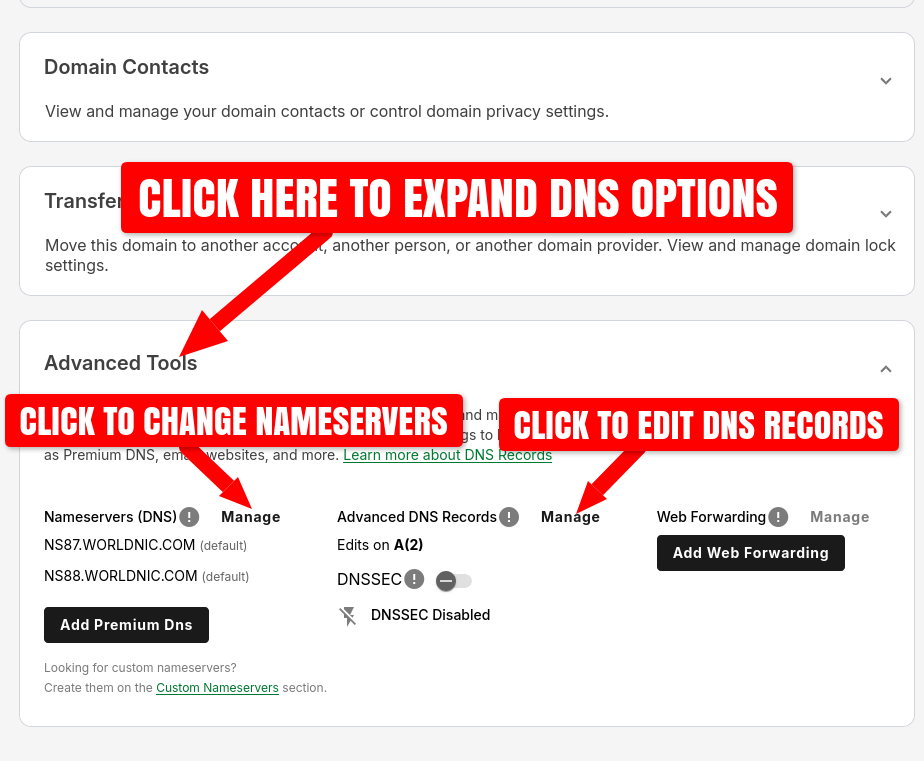
To modify your domain's DNS settings, scroll down until you see the Advanced Tools section, and click it to expose the DNS options. Click the "Manage" links to change your domain's nameservers or edit its DNS recoreds:
WHOIS PRIVACY
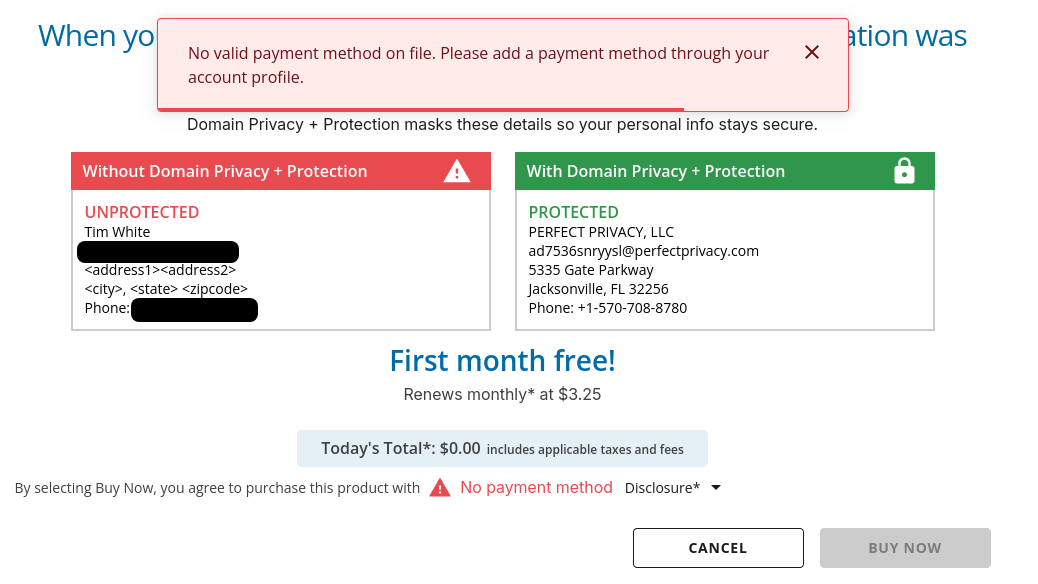
Network Solutions does not offer free WHOIS Privacy. Instead, they charge $3.25 per month for this service (though the first month is free):
I noticed that the registrant details in the WHOIS database are still set to the original BuyDomains.com contacts, even two weeks after the domain purchase was completed:
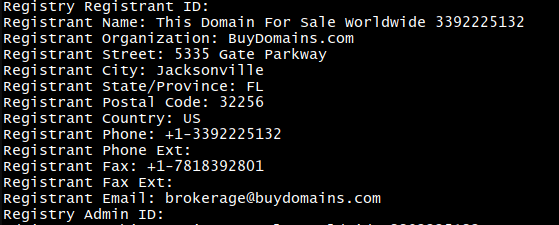
However, after about 1 month, my unredacted contact information was populated and viewable in the WHOIS database. As such, it may be worth paying for their WHOIS Privacy service, even if only needed a month or two.
Transfer the Domain to a Different Registrar
Once the 60-day transfer lock period has elapsed for your purchased domain, you'll be able to transfer it to a new registrar. Network Solutions will not notify you that the lock has been removed, so make sure to set a reminder on your calendar.
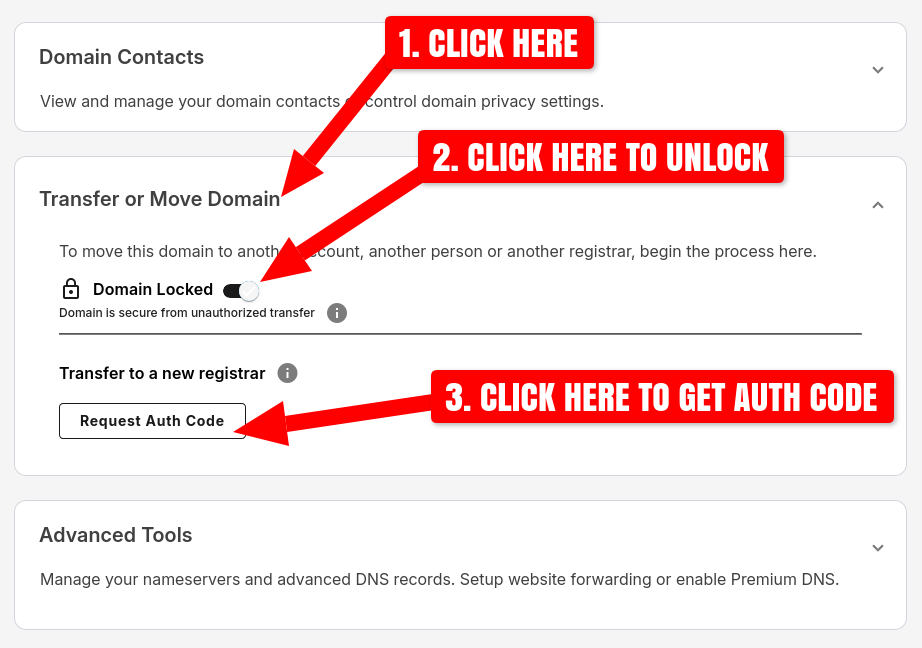
To begin the transfer, you need to unlock your domain. Log in to your Network Solutions account, navigate to Domains in the left-hand menu, and click on your domain name to display the domain management page.
Scroll to the bottom of the page, click Transfer or Move Domain, then click the Domain Locked toggle to unlock your domains, and finally click the Request Auth Code button:
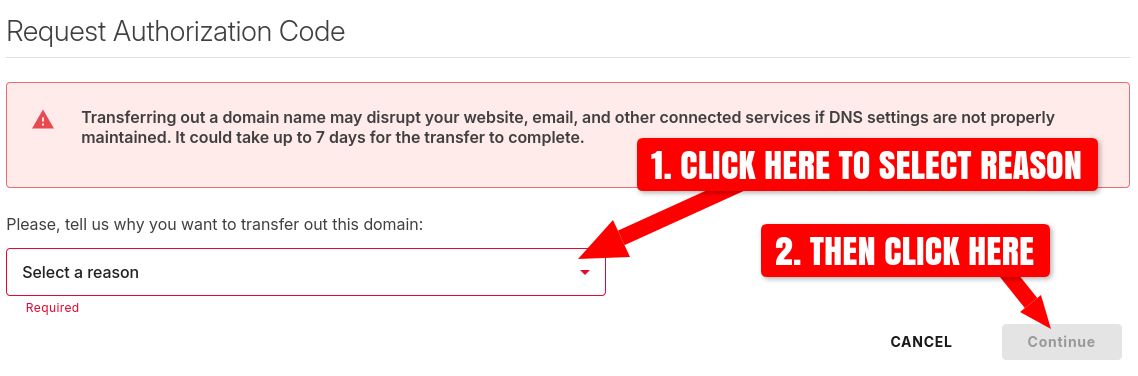
A pop-up will be displayed with a warning and requesting a reason why you want to transfer the domain. Click the dropdown to select a reason (it can be anything), and then click the Continue button:
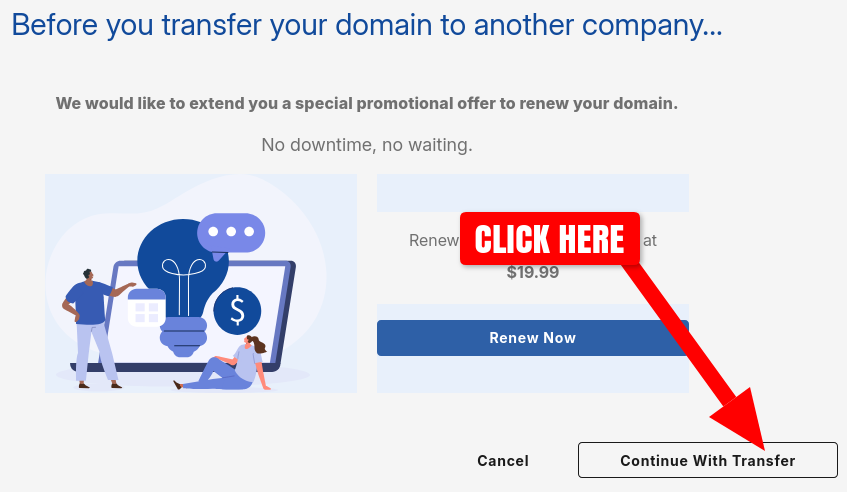
Network Solutions will display two more pop-ups trying to convince you not to transfer your domain. Simply click the Continue With Transfer and Send Auth Code buttons:
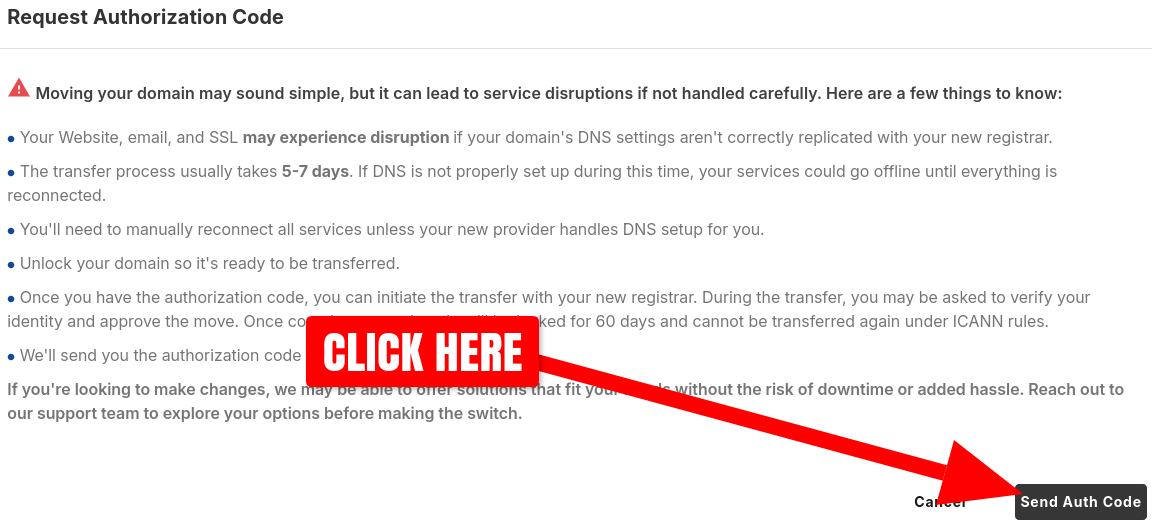
Within a few minutes, Network Solutions will send you an email containing your domain's authorization code (a.k.a. AUTH code or EPP code), which will be a string of randomly generated letters, numbers, and symbols:
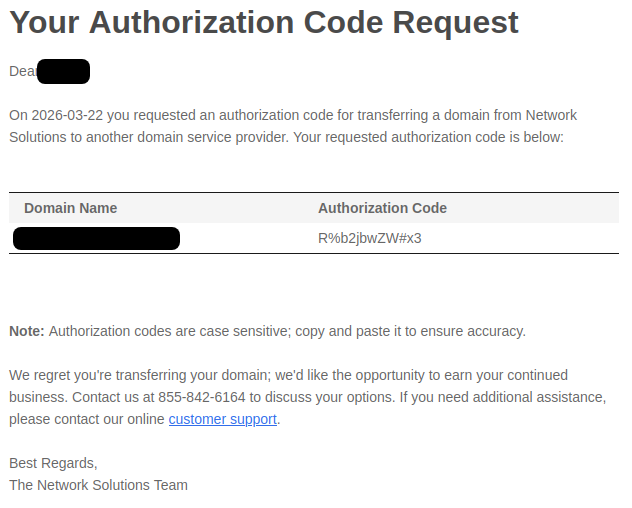
This is the secret code that allows you to transfer the domain to a different registrar. Do not share or publish it as anyone with this code can use it to transfer for it to their own account and take ownership of your domain.
Open a new browser window or tab, and navigate to domain registrar's website that you want to transfer your domain to. Log in and go to the "Transfer Domain" page. For this example, we will use the registrar Spaceship.
On the transfer domain page, enter the domain name:
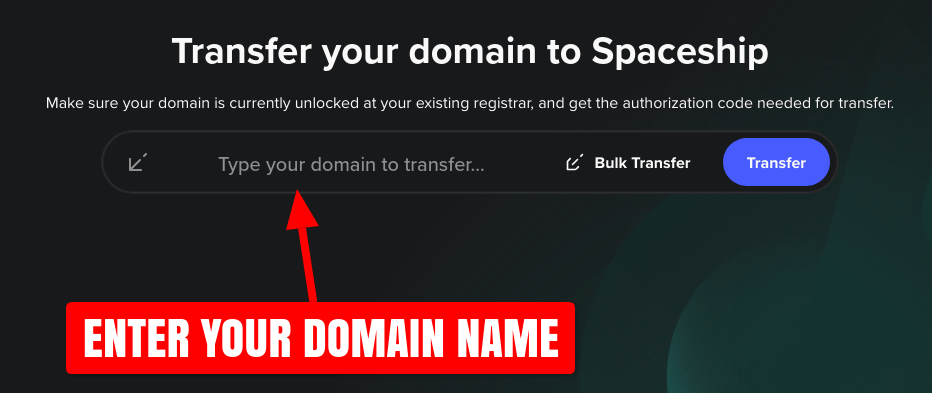
Your registrar may ask you to enter the authorization code in the next step. If you're using Spaceship as your registrar, they will immediately check the authorization code and only allow you to continue if it's valid.
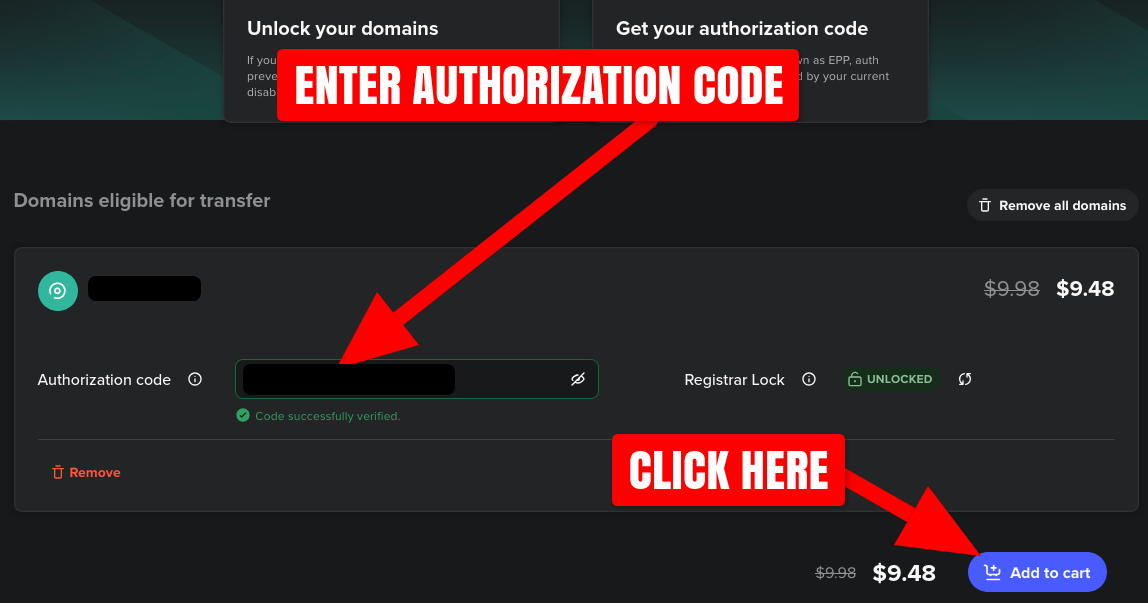
If the authorization code is invalid, ensure there is no extra whitespace at the beginning or end of the code you've entered.
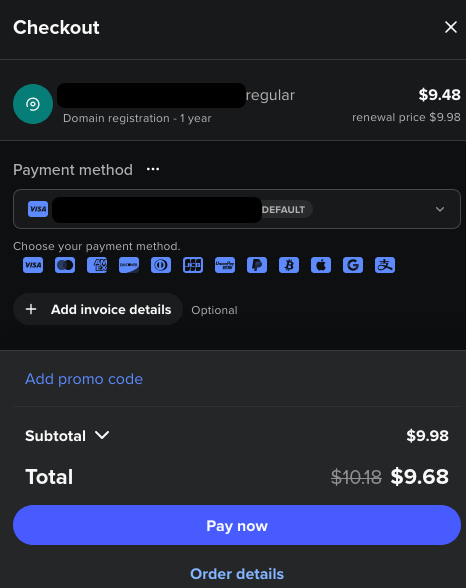
If your registrar shows that the authorization code is valid, you're ready to checkout:
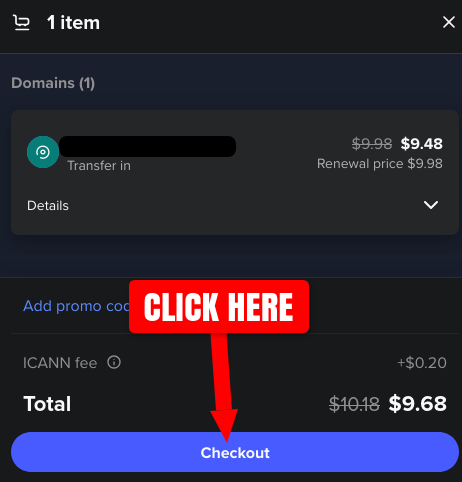
Click the Pay now button to purchase and finalize the domain transfer:
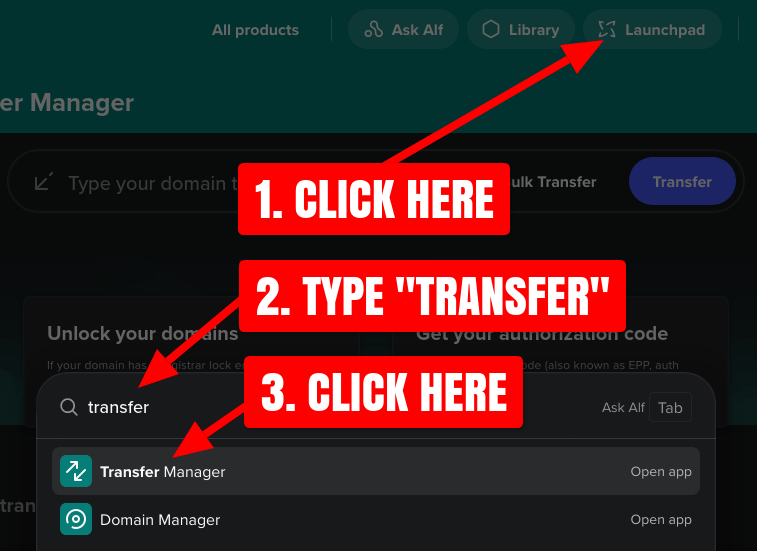
Once the domain transfer is paid, your domain name will appear in your registrar's Transfer Management page.
Navigate to the Spaceship Transfer Manager page to view the status of the transfer:
The current status of your domain's transfer will be displayed:
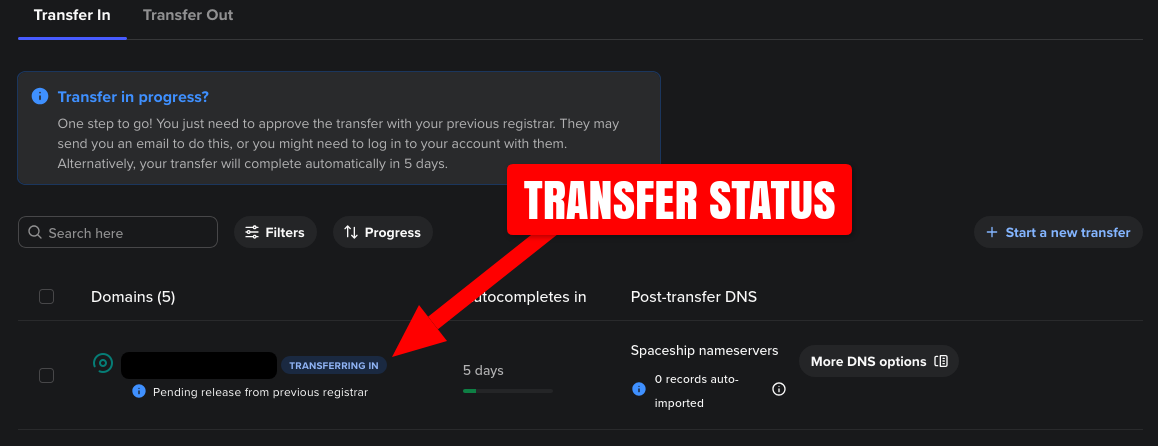
The domain transfer is now in progress. Unfortunately, Network Solutions does not offer anyway to approve and expedite the transfer. Network Solutions will complete the transfer to your new registrar automatically within 5 to 7 days.